
Skip to content
  • Home
  • Astro PM Features
    • Equipment Management
    • Project Management
    • N.I.N.A. Automation
    • Sky View & Framing
    • Weather Forecast
    • SubInspector
    • Image Analysis
    • Calculators & Tools
  • Buy License
  • Resources
    • Documentation
    • View YouTube Channel
    • Join Discord Channel
    • Join Facebook Page
    • Contact Us
    • Account
  • Home
  • Astro PM Features
    • Equipment Management
    • Project Management
    • N.I.N.A. Automation
    • Sky View & Framing
    • Weather Forecast
    • SubInspector
    • Image Analysis
    • Calculators & Tools
  • Buy License
  • Resources
    • Documentation
    • View YouTube Channel
    • Join Discord Channel
    • Join Facebook Page
    • Contact Us
    • Account
Buy License
Download
Sign up for our Newsletter:

Installation & Setup

6
  • System Requirements & Download
  • Installing Astro PM on Windows
  • Activating Your License
  • First Launch Setup
  • Updating Astro PM
  • Cloud Sync & Your Sync Token

Astro PM App Guide

34
  • App Overview & Navigation
  • Astro PM Settings
  • Equipment Setup
    • Imaging Systems
    • Observing Sites
    • Telescopes
    • Cameras
    • Filters & Exposure Plans
    • Eyepieces
    • Sharing Equipment
  • Framing
    • Sky View & Framing
    • Surveys & Star Rendering
    • Overlays & Catalogs
    • Time Controls & Timeline
    • Exoplanet Targets & Transit Planning
  • Projects
    • Project Management
    • Creating Projects & Targets
    • Exposure Plans & Progress Tracking
    • Target Visibility & Charts
    • Moon Avoidance
    • Mosaic Planning
  • Community
    • Astro PM Gallery
    • Image of the Week
    • My Gallery Images
  • Weather
    • Weather Forecasting
  • NINA Tools
    • The Nightly Simulator
    • Scheduling Strategies
    • Managing Cloud Targets
  • Analysis Tools & Calculators
    • Image Analysis Tools Overview
    • SubInspector
    • Single Image Analysis Tools
    • Image Annotator
    • Sampling Calculator
    • Exposure Calculator
    • Focal Length Calculator

Astro PM NINA Guide

10
  • Installing the NINA Plugin
  • Connecting NINA to Astro PM
  • Astro PM Instructions Explained
  • Building Your Sequence
  • Offline & Vacation Mode
  • Playback Modes
  • The NINA Simulator Panel
  • Automated Flat Handling
  • Trigger Sets: Custom Instructions
  • NINA Troubleshooting

Astro PM Phone Guide

7
  • Installing the Phone App
  • Pairing Your Phone
  • Browsing Systems & Targets
  • Live Session Monitoring
  • The Weather Panel
  • Remote Pause & Resume
  • Phone App Troubleshooting
View Categories
  • Home
  • Docs
  • Astro PM App Guide
  • Equipment Setup
  • Cameras

Cameras

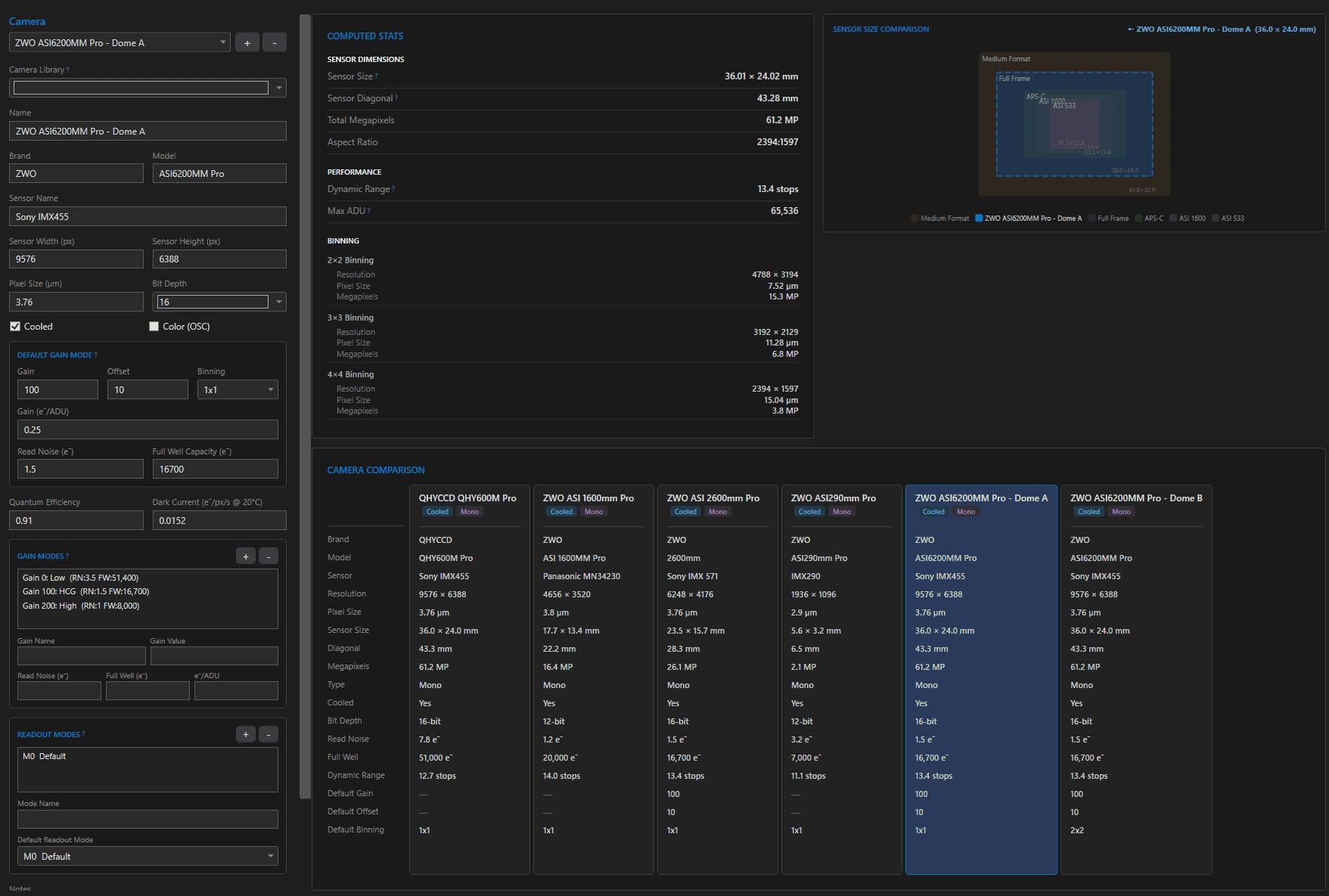
The camera entry is the most detailed in the library, because it feeds the most physics: FOV and sampling come from its geometry, exposure recommendations from its noise model, and NINA captures with its defaults. Get this one right and the Exposure Calculator becomes genuinely predictive.

Sensor Geometry & Basics #

FieldNotes
Name / Brand / Model / Sensor Namesensor part number (e.g. IMX533) helps library matching
Sensor Width × Height (px)with pixel size, defines FOV and sensor dimensions
Pixel Size (µm)the key to image scale: 206.265 × pixel size / focal length
Bit Depth8 / 12 / 14 / 16 – sets max ADU (2^bits)
Cooled / Color (OSC)cooling flag and one-shot-color flag

The Default Gain Mode #

This block is the camera’s standard operating point – and it follows the camera between sites and rigs:

  • Gain / Offset / Binning – the driver settings pre-filled into new exposure plan lines when this camera is on a project.
  • Gain (e-/ADU), Read Noise (e-), Full Well (e-) – the noise model at that gain setting. These three travel together: change the gain on your camera and all three change with it.

Two sensor properties sit apart because they do not vary with gain: Quantum Efficiency (default 0.80) and Dark Current at 20°C (default 0.005 e-/px/s, scaled to your actual sensor temperature with the 6°C-doubling rule in the exposure model).
Gain Modes & Readout Modes #

Gain Modes (optional list): capture additional operating points from your camera’s datasheet – a low-gain/unity mode for best dynamic range, a high-gain mode for lowest read noise, an HCG mode if the sensor has one. Each mode carries its own read noise, full well, and e-/ADU, and becomes selectable in the Exposure Calculator for direct comparison.

Readout Modes (optional list): the named modes your driver exposes (“High Gain”, “Low Gain”, “HDR” – native ZWO ASI cameras expose only “Default”). Spell each name exactly as the driver reports it – the NINA plugin matches these names against the live camera at capture time. The default mode pre-fills new exposure-plan lines.

Computed Stats & Comparisons #

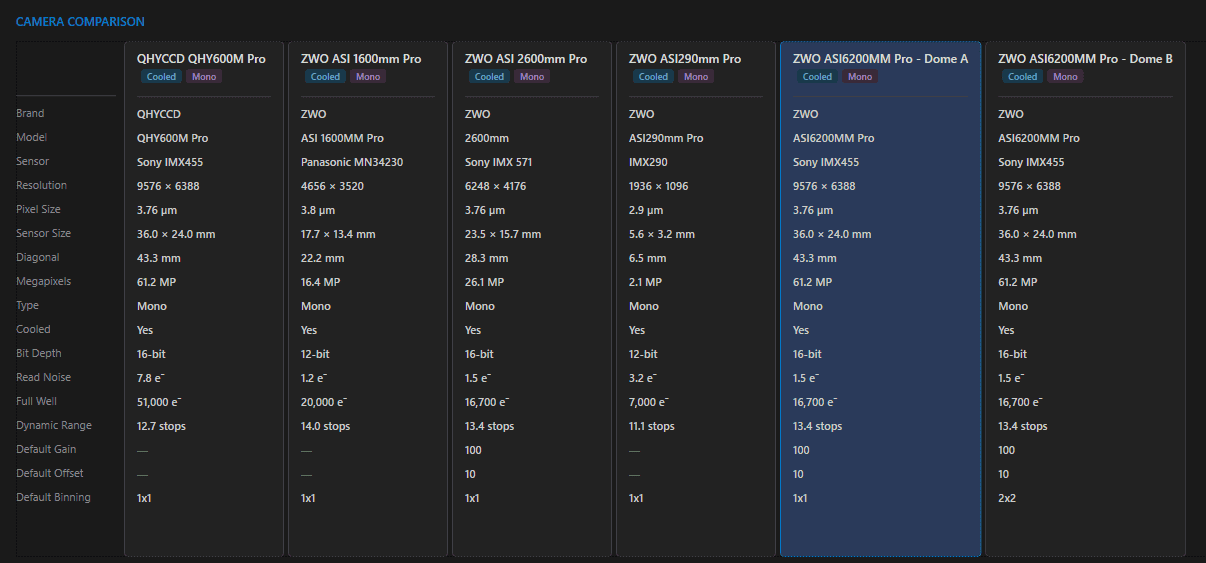
The stats panel derives sensor size in millimeters, diagonal, megapixels, aspect ratio, dynamic range in stops (log₂ of full well / read noise), max ADU, and per-binning figures. Two comparison aids round it out: a sensor-size overlay drawing your cameras’ outlines at true relative scale, and a sortable comparison table of every camera in the library – the fastest way to reason about an upgrade.
Where Camera Data Is Used #

  • Geometry (pixels × pixel size) – FOV and image scale in Sky View, mosaics, thumbnails, and the Sampling Calculator.
  • Noise model (read noise, full well, QE, dark current, gain modes) – the entire Exposure Calculator, both modes.
  • Defaults (gain/offset/binning/readout) – pre-fill every new exposure plan line; NINA captures with exactly these values, and readout-mode names resolve on the live camera.

A camera is one third of every Imaging System; edits propagate to all projects on rigs using it, and deletion is blocked while referenced.

Tip: The camera library pre-fills most of this from the model database – but verify read noise and full well against your camera’s datasheet curve at YOUR chosen gain. Those two numbers decide the sub-length recommendation.
Updated on July 12, 2026
TelescopesFilters & Exposure Plans
Page Content
  • Sensor Geometry & Basics
  • The Default Gain Mode
  • Gain Modes & Readout Modes
  • Computed Stats & Comparisons
  • Where Camera Data Is Used

Features

  • Equipment Library
  • Project Management
  • Sky View & Framing
  • Image Analysis
  • Calculators
  • SubInspector
  • NINA Plugin

Resources

  • Contact Us
  • Terms of Service
  • View Account
  • Discord Channel
  • Join Facebook

Get Started

Professional astrophotography project management software. Plan imaging sessions, manage equipment, analyze sub-frames, and sync targets to NINA — all in one workspace.

Download

© 2026 AstroPM

Terms of Use & Privacy Policy