
The exposure grid is Astro PM’s ledger: for every filter of every panel it tracks what you planned, what NINA captured, what sits on remote storage, what made it home, what you have reviewed, and what survived review. This page explains every column, every count, and the folder plumbing that makes the numbers true.
Anatomy of a Plan Row #
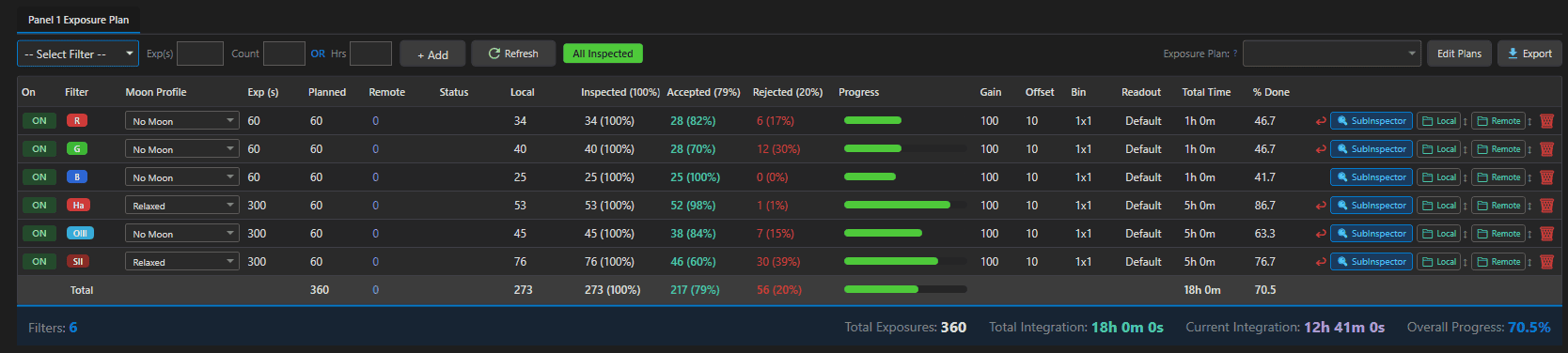
Left to right: On (enable pill – off rows keep progress but are invisible to the scheduler and NINA), Filter chip, Moon Profile, Exp (s), Planned, then the live counts – Remote, Status (Sync ➔ / ✓ Synced), Local, Inspected, Accepted, Rejected – the Progress bar, capture settings (Gain, Offset, Bin, Readout), computed Total Time and % Done, and the action buttons. A totals row underneath sums the plan: total exposures, total integration, current integration (accepted × exposure – your real captured hours), and overall progress.
The Counts, Precisely #
| Count | Meaning |
|---|---|
| Planned | your target – entered directly or derived from hours |
| Local (Acquired) | every sub on local disk for this row = Accepted + Rejected |
| Accepted | local subs NOT in a /rejected folder – the number that matters |
| Rejected | subs in /rejected subfolders |
| Inspected | subs you have loaded into Sub Inspector at least once – your review coverage |
| Remote | subs counted on the remote folder at last scan |
| Unsynced (hidden) | remote files whose names are not local yet – this is what lights the Sync ➔ button |
| Remaining | Planned – Accepted: the number the scheduler plans against |
Because Remaining is Planned minus Accepted, rejecting a cloudy sub in Sub Inspector automatically puts that frame back on the schedule. The loop closes itself.
Local Folders & How Subs Are Counted #
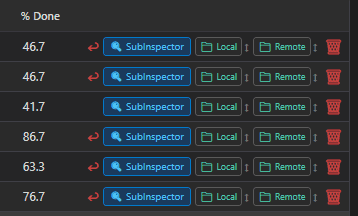
Each row points at a Local folder (set per row, or once with Copy-to-All; auto-assigned to the project’s Originals folder when the root-folder settings are on). Counting rules:
- The scan is recursive – organize into Session 1 / Session 2 or per-date subfolders freely.
- Any folder named
rejectedat any depth counts its files as Rejected – the exact convention Sub Inspector uses when you reject frames. - Files match rows by their FITS headers: the FILTER keyword (normalized – “Red” matches R, “H-Alpha” matches Ha) plus exposure time within 1 second or 5%. When two rows share a filter, the closest exposure wins.
- Counts refresh automatically every 60 seconds while the editor is open, and on demand with Refresh.
Remote Folders & Syncing #
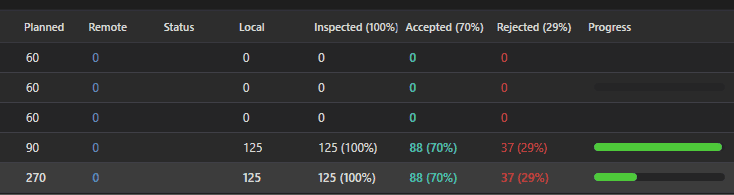
The Remote folder is a path that mirrors your observatory computer’s captures – typically a cloud-sync client folder (OneDrive, Dropbox, Syncthing…) that the remote machine writes into. Scanning it counts what exists out there; the hidden Unsynced count compares remote filenames against local ones and lights Sync ➔ when there is something to fetch.
The sync copy is deliberately cautious:
- Files already local are skipped.
- Files whose names sit in a local
/rejectedfolder are skipped too – a sub you rejected never comes back on the next sync. - Every copy is size-verified; cloud “online-only” placeholder files are detected and reported rather than half-copied.
- With the delete-remote option enabled in Settings, the remote copy is removed only after a verified local copy exists.
The row’s folder buttons show health at a glance: green when the folder exists and has files, red when the path is offline. Fleet-wide versions of these operations – Scan Remote and Sync All Projects – live in Project Management.
Reading the Progress Bar #
The dual-layer bar tells the whole story in one glance: green is Accepted vs Planned – approved data in hand; the red layer is Remote vs Planned – captured but still at the observatory. Red ahead of green means sync; green at 100% means the row is done. The same bar appears on project cards in Project Management, fed by these per-row numbers.
The Calibration Frames Tab #

Next to the panel tabs, every project carries a Calibration Frames tab – a live answer to “do my calibration frames actually cover this plan?”
| Row | Requirement & where it looks |
|---|---|
| DARK | one row per unique exposure / binning / gain / offset in the plan, matched against the camera’s Calibration Frame Library |
| BIAS | one row per binning / gain / offset combination, from the same library |
| FLAT | one row per filter per capture night, found by scanning the project’s local folders – filter color chip, frame count, and that night’s date |
| DARK FLAT | informational rows under each filter’s flats when present – never flagged Missing, since bias calibration replaces them |
Each row ends in a status: green ✓ Covered, amber ✗ Missing, or ? Unknown when the project’s camera has no scanned library yet. Library frames missing a GAIN or OFFSET header still match – older captures often omit them.
The tab header carries mini coverage badges – Flats / Bias / Darks, plus DarkFlats when you shoot them – and the same badge strip appears beside ACCEPTED EXPOSURES on every project card. Bias and dark flats are an either-or: having one satisfies both; only when you have neither do both show an ✗.
NINA, the Cloud, and Who Wins #
During a session, NINA reports each capture to the cloud – that is what moves the phone app and cloud progress in real time. On the desktop, the local disk is authoritative: whenever folders are scanned, the counts come from actual files, and those counts are what the desktop simulator schedules against and what pushes back to the cloud. In practice: cloud counts are the fast heartbeat, disk counts are the truth, and they converge every time your files sync home and the folders rescan.
Row Actions Reference #
| Action | What it does |
|---|---|
| Sync ➔ | copy this row’s unsynced remote files down |
| 🔍 Sub | open Sub Inspector scoped to this row’s folder |
| 📁 Local / 📁 Remote | set the row’s folders |
| ↕ Copy to all | apply this row’s local (or remote) folder to every row in the panel |
| ↩ Reset Rejected | move everything out of /rejected back into the main folder – the undo for an over-aggressive culling session |
| 🗑 Delete | remove the row |