Skip to content
  • Home
  • Astro PM Features
    • Equipment Management
    • Project Management
    • N.I.N.A. Automation
    • Sky View & Framing
    • Weather Forecast
    • SubInspector
    • Image Analysis
    • Calculators & Tools
  • Buy License
  • Resources
    • Documentation
    • View YouTube Channel
    • Join Discord Channel
    • Join Facebook Page
    • Contact Us
    • Account
  • Home
  • Astro PM Features
    • Equipment Management
    • Project Management
    • N.I.N.A. Automation
    • Sky View & Framing
    • Weather Forecast
    • SubInspector
    • Image Analysis
    • Calculators & Tools
  • Buy License
  • Resources
    • Documentation
    • View YouTube Channel
    • Join Discord Channel
    • Join Facebook Page
    • Contact Us
    • Account
Buy License
Download
Sign up for our Newsletter:

Installation & Setup

6
  • System Requirements & Download
  • Installing Astro PM on Windows
  • Activating Your License
  • First Launch Setup
  • Updating Astro PM
  • Cloud Sync & Your Sync Token

Astro PM App Guide

34
  • App Overview & Navigation
  • Astro PM Settings
  • Equipment Setup
    • Imaging Systems
    • Observing Sites
    • Telescopes
    • Cameras
    • Filters & Exposure Plans
    • Eyepieces
    • Sharing Equipment
  • Framing
    • Sky View & Framing
    • Surveys & Star Rendering
    • Overlays & Catalogs
    • Time Controls & Timeline
    • Exoplanet Targets & Transit Planning
  • Projects
    • Project Management
    • Creating Projects & Targets
    • Exposure Plans & Progress Tracking
    • Target Visibility & Charts
    • Moon Avoidance
    • Mosaic Planning
  • Community
    • Astro PM Gallery
    • Image of the Week
    • My Gallery Images
  • Weather
    • Weather Forecasting
  • NINA Tools
    • The Nightly Simulator
    • Scheduling Strategies
    • Managing Cloud Targets
  • Analysis Tools & Calculators
    • Image Analysis Tools Overview
    • SubInspector
    • Single Image Analysis Tools
    • Image Annotator
    • Sampling Calculator
    • Exposure Calculator
    • Focal Length Calculator

Astro PM NINA Guide

10
  • Installing the NINA Plugin
  • Connecting NINA to Astro PM
  • Astro PM Instructions Explained
  • Building Your Sequence
  • Offline & Vacation Mode
  • Playback Modes
  • The NINA Simulator Panel
  • Automated Flat Handling
  • Trigger Sets: Custom Instructions
  • NINA Troubleshooting

Astro PM Phone Guide

7
  • Installing the Phone App
  • Pairing Your Phone
  • Browsing Systems & Targets
  • Live Session Monitoring
  • The Weather Panel
  • Remote Pause & Resume
  • Phone App Troubleshooting
View Categories
  • Home
  • Docs
  • Astro PM App Guide
  • Equipment Setup
  • Observing Sites

Observing Sites

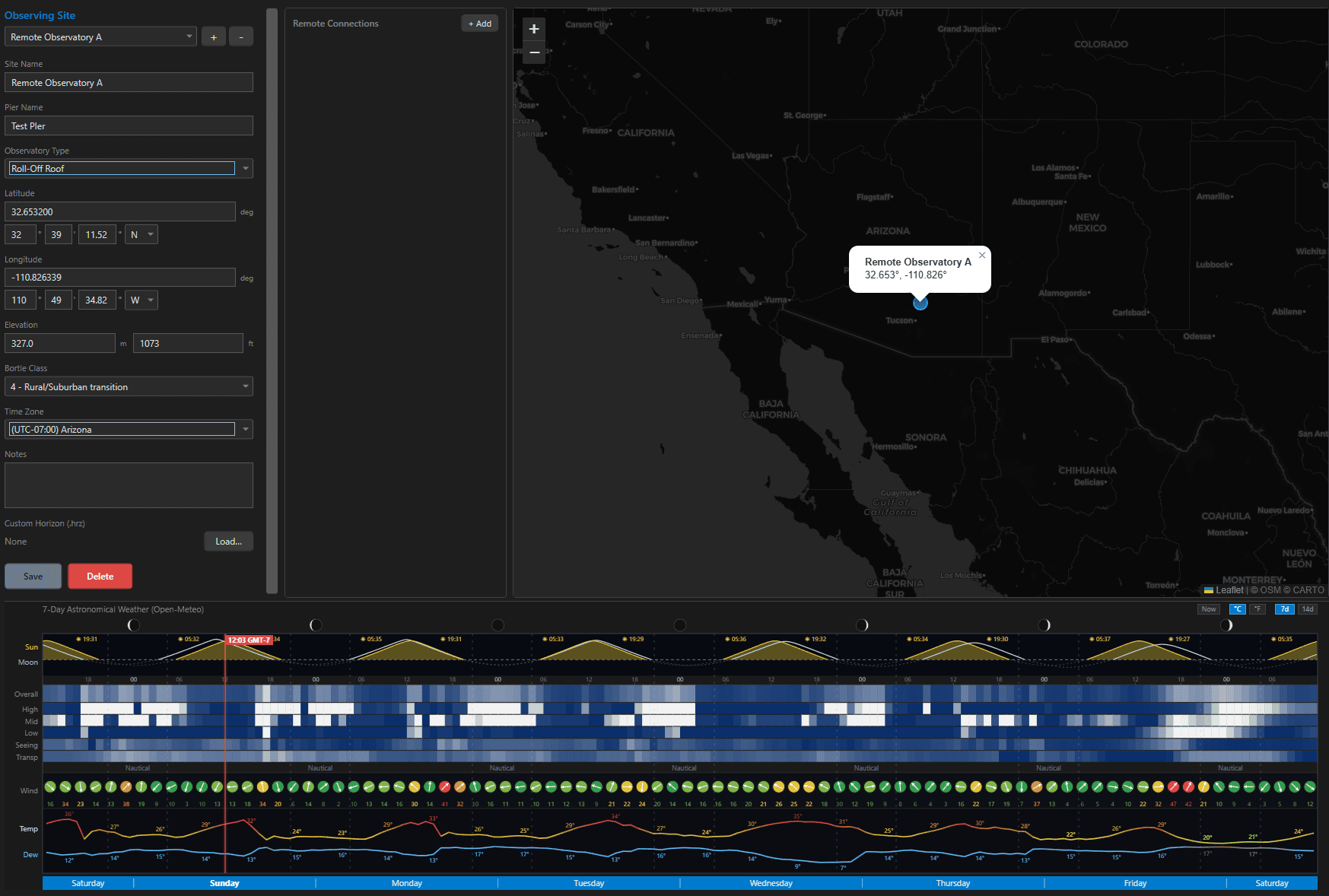
A site is where the sky happens: its coordinates drive twilight times, target rise and set, moon geometry, weather forecasts, and the scheduler’s entire model of your night. Five minutes of accurate site setup pays off in every panel of the app.

The Fields #

FieldNotes
Name / Pier Namethe site name appears everywhere; Pier Name optionally identifies a specific mount when one location hosts several
Observatory TypeNone/Open Air, Dome, Roll-Off Roof, Fixed Pier, Portable, Remote/Hosted – descriptive today, reserved for future condition logic
Latitude / Longitudeenter as decimal degrees or degrees/minutes/seconds with N/S and E/W pickers – the two stay in sync either way
Elevationdual meters/feet inputs, synced
Bortle Class1 (excellent dark) through 9 (inner city)
Time Zonegrouped by UTC offset; drives local-time display and night boundaries
Notesfree text for your own records

Custom Horizon (.hrz) #

Upload a horizon profile – a plain-text list of azimuth/altitude pairs describing your real skyline, in the same format NINA, Stellarium, and Astro-Physics use. Once loaded, Sky View draws the obstruction line over the stars and the scheduler refuses to plan imaging behind your trees or roofline. The full story lives in Custom Horizons; the upload and clear buttons live here on the site.

Weather & Map, Built In #

Because a site has real coordinates, its editor shows a live map marker and the site’s weather forecast panel – the same night-by-night cloud/seeing/transparency outlook described in Weather Forecasting. Add a second site (the dark-sky ranch, the club field) and each carries its own forecast, horizon, and time zone.

Remote Connections #

The Remote Connections sub-panel stores connection profiles for systems that live at this site – a NINA machine in the dome, a hosted rig, and similar. Each entry has a service type, name, a test/connect button, edit and delete actions, and a gold-star default marker for the site’s primary system.

Where Site Data Is Used #

  • Latitude / longitude – twilight and darkness windows, target altitude and transit, moon position and separation, Sky View, the scheduler, and weather – essentially everything time-and-sky related.
  • Bortle class – converted to an approximate SQM to seed sky brightness in the Exposure Calculator.
  • Time zone – all local-time displays and the noon-to-noon night grouping.
  • Custom horizon – Sky View overlay and hard scheduling constraint.

A site is also one third of every Imaging System. Edits propagate instantly to all projects on rigs at that site – and deletion is blocked while any project or imaging system still references it, so you cannot orphan your data.

Tip: Use real coordinates, not city-center ones – a few kilometers matters little for twilight but the horizon, weather gridpoint, and NINA profile-location match (the plugin warns beyond ~10 km) all reward accuracy.
Updated on July 12, 2026
Imaging SystemsTelescopes
Page Content
  • The Fields
  • Custom Horizon (.hrz)
  • Weather & Map, Built In
  • Remote Connections
  • Where Site Data Is Used

Features

  • Equipment Library
  • Project Management
  • Sky View & Framing
  • Image Analysis
  • Calculators
  • SubInspector
  • NINA Plugin

Resources

  • Contact Us
  • Terms of Service
  • View Account
  • Discord Channel
  • Join Facebook

Get Started

Professional astrophotography project management software. Plan imaging sessions, manage equipment, analyze sub-frames, and sync targets to NINA — all in one workspace.

Download

© 2026 AstroPM

Terms of Use & Privacy Policy