
Your targets live in the cloud, and the plugin is a consumer of them: it fetches, filters, schedules, and images them – but all management (creating targets, editing exposure plans, changing status or priority, deleting) happens in the desktop app. This page covers how targets flow to NINA, how to browse them, and how to keep the observatory’s view fresh.
Where Targets Come From #
The desktop app pushes your projects to the cloud automatically as you work – no export step. Cloud targets are account-level: every install that uses your sync token (other PCs, NINA machines, the phone app) sees the same pool. Each NINA installation then narrows that pool with its selected imaging system, so a rig only ever sees the targets planned for its own site, telescope, and camera.
Two properties decide whether a target gets imaged:
- Status – only Active projects with remaining exposures are scheduled. Planning and On Hold projects can still be browsed but are left alone.
- Priority – set per project in the desktop app; the scheduler uses it when targets compete for the same sky time.
Browsing the Target List #
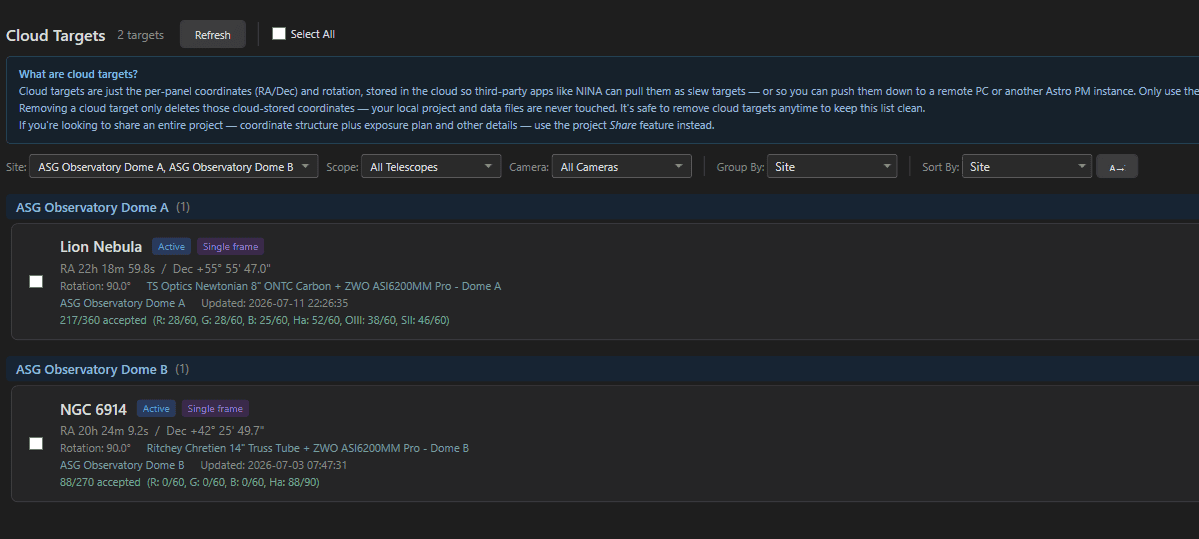
The Browse Cloud Targets section of the plugin Options page lists the rig’s targets with everything the plugin knows about each one: coordinates, rotation, mosaic panel grid, focal length, sensor dimensions, pixel size, priority, and status. A Status filter (defaulting to Active) narrows the list; the Location, Telescope, and Camera filters are set automatically by the selected imaging system and shown read-only.
It is the quickest sanity check that the pipe is working: the count next to the heading tells you how many targets this rig can see, and selecting a row shows its full equipment details.
Keeping Targets Fresh #
Targets are refetched from the cloud at every schedule build, so plan changes made during the day reach the observatory by nightfall on their own. You can also refresh explicitly:
- The Refresh button on the Options page refetches the list immediately.
- The AstroPM Refresh Cloud Targets sequencer instruction fetches the latest active targets and updates the local cache – drop it at the start of your nightly sequence to pick up the day’s changes before the schedule builds.
When the Cloud Is Unreachable #
Every successful fetch refreshes a local cache on the NINA machine. If the cloud cannot be reached, the browse list is served from that cache instead and a red Offline Mode banner appears showing the cache’s age – the same fallback the scheduler uses at night. See Offline & Vacation Mode for the full offline story, including deliberate offline running.