
Skip to content
  • Home
  • Astro PM Features
    • Equipment Management
    • Project Management
    • N.I.N.A. Automation
    • Sky View & Framing
    • Weather Forecast
    • SubInspector
    • Image Analysis
    • Calculators & Tools
  • Buy License
  • Resources
    • Documentation
    • View YouTube Channel
    • Join Discord Channel
    • Join Facebook Page
    • Contact Us
    • Account
  • Home
  • Astro PM Features
    • Equipment Management
    • Project Management
    • N.I.N.A. Automation
    • Sky View & Framing
    • Weather Forecast
    • SubInspector
    • Image Analysis
    • Calculators & Tools
  • Buy License
  • Resources
    • Documentation
    • View YouTube Channel
    • Join Discord Channel
    • Join Facebook Page
    • Contact Us
    • Account
Buy License
Download
Sign up for our Newsletter:

Installation & Setup

6
  • System Requirements & Download
  • Installing Astro PM on Windows
  • Activating Your License
  • First Launch Setup
  • Updating Astro PM
  • Cloud Sync & Your Sync Token

Astro PM App Guide

34
  • App Overview & Navigation
  • Astro PM Settings
  • Equipment Setup
    • Imaging Systems
    • Observing Sites
    • Telescopes
    • Cameras
    • Filters & Exposure Plans
    • Eyepieces
    • Sharing Equipment
  • Framing
    • Sky View & Framing
    • Surveys & Star Rendering
    • Overlays & Catalogs
    • Time Controls & Timeline
    • Exoplanet Targets & Transit Planning
  • Projects
    • Project Management
    • Creating Projects & Targets
    • Exposure Plans & Progress Tracking
    • Target Visibility & Charts
    • Moon Avoidance
    • Mosaic Planning
  • Community
    • Astro PM Gallery
    • Image of the Week
    • My Gallery Images
  • Weather
    • Weather Forecasting
  • NINA Tools
    • The Nightly Simulator
    • Scheduling Strategies
    • Managing Cloud Targets
  • Analysis Tools & Calculators
    • Image Analysis Tools Overview
    • SubInspector
    • Single Image Analysis Tools
    • Image Annotator
    • Sampling Calculator
    • Exposure Calculator
    • Focal Length Calculator

Astro PM NINA Guide

10
  • Installing the NINA Plugin
  • Connecting NINA to Astro PM
  • Astro PM Instructions Explained
  • Building Your Sequence
  • Offline & Vacation Mode
  • Playback Modes
  • The NINA Simulator Panel
  • Automated Flat Handling
  • Trigger Sets: Custom Instructions
  • NINA Troubleshooting

Astro PM Phone Guide

7
  • Installing the Phone App
  • Pairing Your Phone
  • Browsing Systems & Targets
  • Live Session Monitoring
  • The Weather Panel
  • Remote Pause & Resume
  • Phone App Troubleshooting
View Categories
  • Home
  • Docs
  • Astro PM App Guide
  • Community
  • My Gallery Images

My Gallery Images

Everything you have submitted lives under Community → Astro PM Gallery → My Gallery Images. It is the same grid as the public gallery, filtered to your work, and it doubles as a small dashboard: how each image is being received, who has liked it, and what people have said.

Your Stats #

Your own tiles show a thumbs-up count and a view count in the corner of the caption – a quick read on how each image is doing without opening anything. Other users never see these on your tiles; to them the grid stays clean.

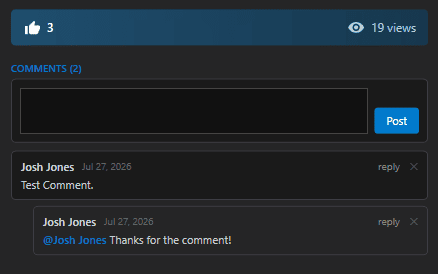
Open one of your images and the same numbers appear in the blue bar under the metadata.
Seeing Who Liked Your Image #

On your own images the thumbs-up in that bar becomes a button: click it to open a scrollable list of everyone who has liked the image. Click any name to browse that user’s own gallery images.

This list is private to you. Other users only ever see the total count on your images – never who the individual people are.

Activity Notifications #

The bell at the right of the gallery toolbar collects everything happening on your work: likes, comments on your images, and replies to comments you have left. A red badge counts what is new since you last looked.

Open it for the list – newest first, with a snippet of each comment – and click any entry to jump straight to that image. Clear dismisses everything currently listed; anything that happens afterwards still comes through.

Updating an Image #

To change anything about a submission – a reprocessed version, a corrected filter count, a better description – open the original project and click Update Gallery Image. The entry is replaced in place, so it keeps its likes, views, and comments.

This is also how older submissions pick up newer gallery features: an image submitted before a field existed gains it the next time you update.

Turning Comments Off #

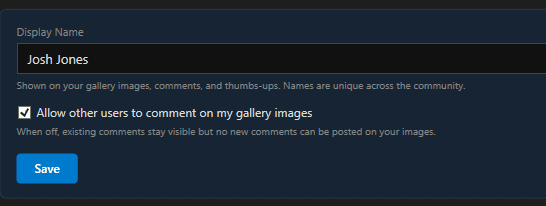
If you would rather not have discussion on your images, open Settings and find the Community section. Clear Allow other users to comment on my gallery images and no new comments can be posted on anything of yours. Existing comments stay visible, and likes and views are unaffected.

The same section is where you change your display name – the name shown on your images, comments, and likes across the whole community.
Removing an Image #

Open one of your images in the gallery and click the red Delete button beside the title. After a confirmation, the entry is removed for everyone.

Deleting takes the whole entry with it: all three stored versions of the image are erased from storage, along with its likes and its comment thread. The project on your own computer is untouched – your final image, exposure data, and everything else stay exactly as they were, and you can submit the project again later if you change your mind.

Careful: Deletion is permanent and immediate – there is no undo and no recovery of the comments or likes an image had collected. If you only want to publish a different version, use Update Gallery Image on the project instead; it replaces the picture and keeps the history.
Updated on July 27, 2026
Image of the WeekAstro PM Gallery
Page Content
  • Your Stats
  • Seeing Who Liked Your Image
  • Activity Notifications
  • Updating an Image
  • Turning Comments Off
  • Removing an Image

Features

  • Equipment Library
  • Project Management
  • Sky View & Framing
  • Image Analysis
  • Calculators
  • SubInspector
  • NINA Plugin

Resources

  • Contact Us
  • Terms of Service
  • View Account
  • Discord Channel
  • Join Facebook

Get Started

Professional astrophotography project management software. Plan imaging sessions, manage equipment, analyze sub-frames, and sync targets to NINA — all in one workspace.

Download

© 2026 AstroPM

Terms of Use & Privacy Policy