
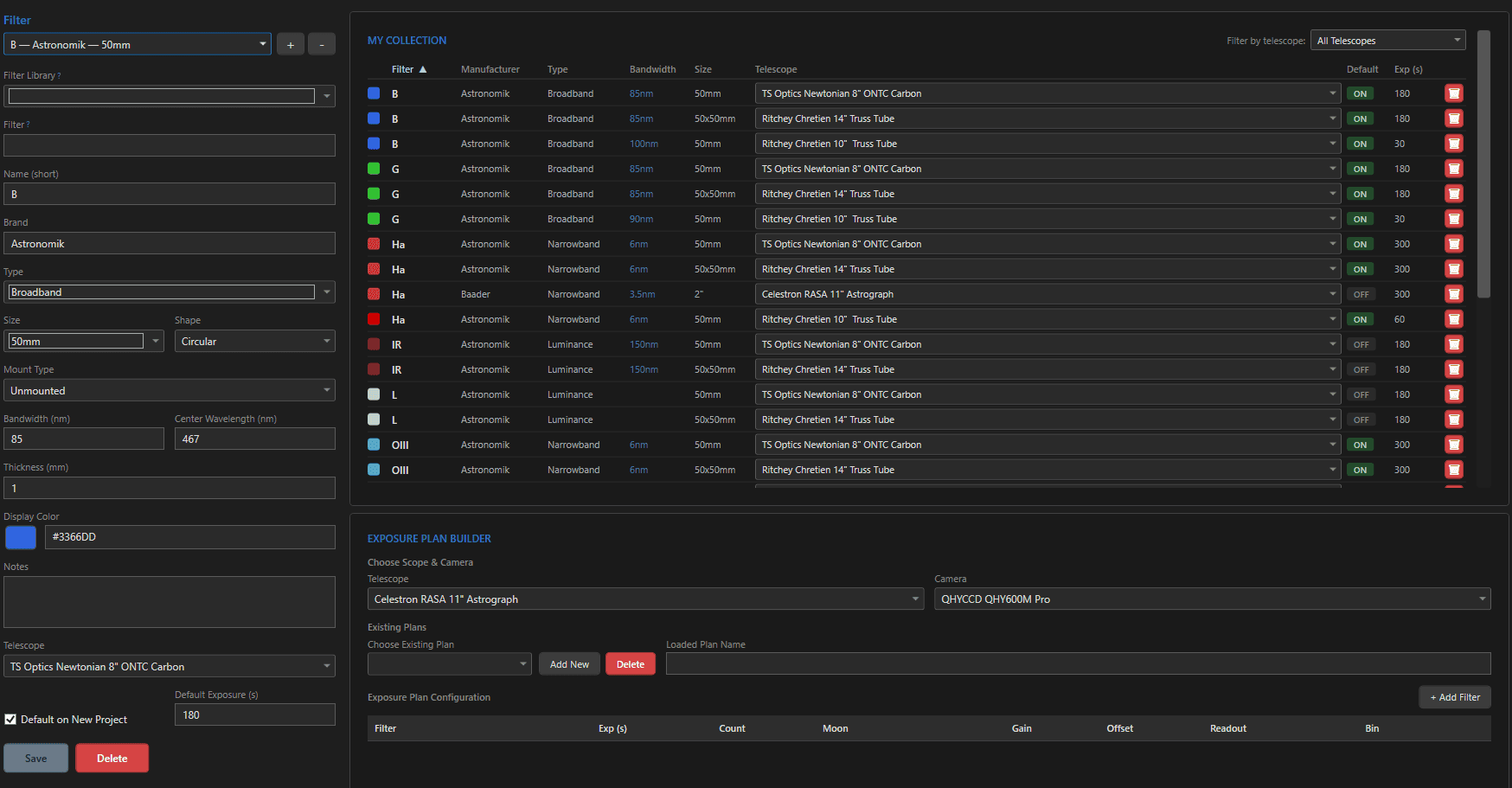
Filters are where planning meets glass: each filter you register carries its own default exposure, its own moon tolerance (via profiles), and its own color in every chart – and its name is the thread that connects a plan line in Astro PM to a physical wheel slot in NINA. The same panel is also home to the Exposure Plan Builder, covered in the second half of this page.
The Fields #
| Field | Notes |
|---|---|
| Full Name | descriptive, e.g. “Astronomik H-alpha 6nm” – auto-filled from the Filter Library |
| Name (short) | the compact designation used everywhere: L, R, G, B, Ha, OIII, SII… |
| Type | Broadband, Narrowband, Luminance, UV-IR Cut, Light Pollution, Solar, Planetary |
| Size / Shape / Mount | 1.25″ to 50×50mm, circular/rectangular, mounted/unmounted – inventory facts |
| Bandwidth (nm) / Center Wavelength (nm) | the optical identity – 3nm Ha at 656nm behaves very differently from 7nm |
| Display Color | the color this filter wears in exposure plans, simulator graphs, and chart pills |
| Telescope assignment | optionally scope a filter to the OTA whose wheel it lives in |
| Default on New Project / Default Exposure (s) | auto-add this filter to new projects with a suggested sub length |
The Name Is the Contract With NINA #
The short Name is how a plan line finds the physical filter: the NINA plugin matches it against your NINA filter wheel names – exact match first, then tolerant prefix matching in both directions (“Ha” finds “Ha 3nm” and vice versa). Keep the names recognizably consistent between Astro PM and NINA and the sync never stumbles.
Defaults That Compound #
Two small settings save the most clicks: Default on New Project auto-adds the filter to the exposure plan when a project is created for its telescope, and Default Exposure pre-fills the sub length. Set both once per filter and new projects arrive with a sensible plan already drafted – typically refined further with the Exposure Plan Builder below.
The Exposure Plan Builder #
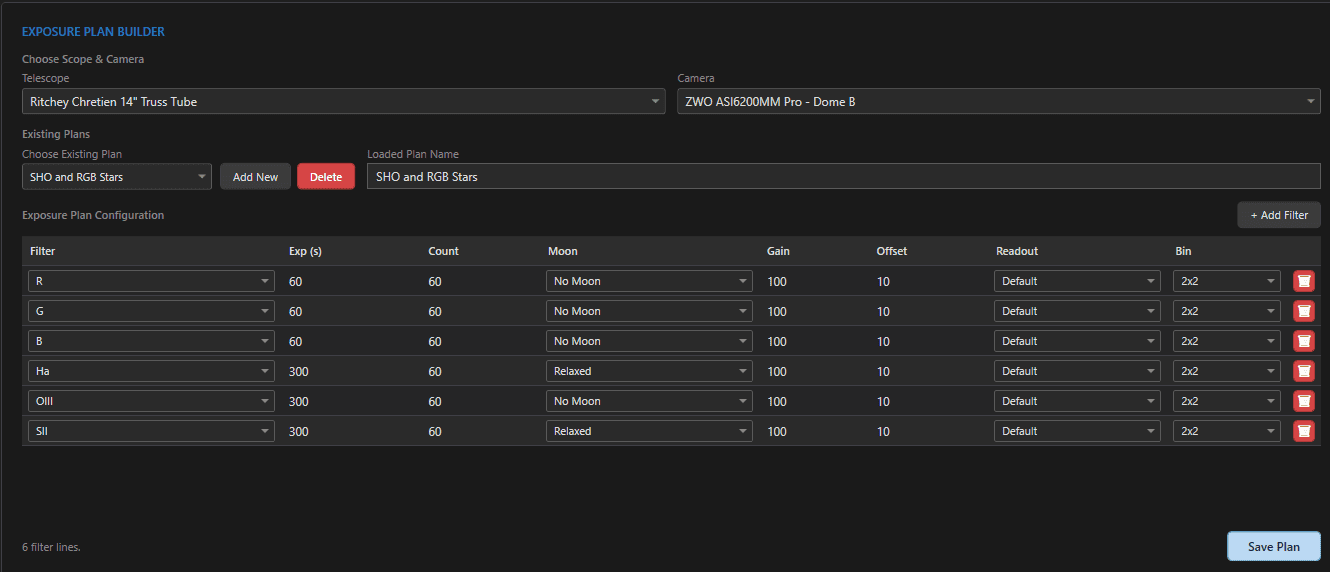
The lower half of the Filters panel is the Exposure Plan Builder – reusable, named recipes describing how you image with a particular scope + camera pair. Build “LRGB Broadband 3min” or “SHO Narrowband 5min” once, and apply it to every new project in one click.
Pick the telescope + camera combination the plan belongs to, then manage plans with the selector and its New/Delete buttons. A plan is a table of filter lines, and every line carries the full capture recipe:
| Line setting | What it does |
|---|---|
| Filter | which filter this line shoots |
| Exposure (s) | seconds per sub |
| Count | planned subs for the project |
| Gain / Offset | camera settings – inherit the camera default or override per line |
| Binning | 1×1 through 4×4 |
| Readout Mode | from the camera’s configured modes; resolved by name in NINA |
| Moon Avoidance | the line’s moon profile assignment |
| Enabled | the per-filter On/Off toggle the scheduler honors |
Every value flows to NINA exactly as entered – the scheduler plans with these lengths and the camera captures with these settings.
Plans, Imaging Systems, and New Projects #
Set a plan as the default for an imaging system and every new project on that rig starts with it pre-applied. Plans are templates, not locks – adjust any line per project afterward without touching the saved plan. When most of your projects share one recipe per rig, this is the single biggest time-saver in project creation.
Where Filter Data Is Used #
- Name – exposure plans, the scheduler’s per-filter allocation, NINA wheel matching, capture reporting, and Sub Inspector’s FITS-header matching.
- Type / bandwidth – informs exposure modeling and which moon avoidance profile a line typically deserves (3nm narrowband tolerates far more moon than broadband).
- Display color – the filter’s visual identity in the simulator graph, nightly charts, and filter pills.
- Plan lines downstream – the scheduler allocates per line, NINA captures per line, and progress counts down per line.