
Every app-wide switch in Astro PM lives in the Settings panel. This page walks each section top to bottom, listing every setting, its default, and what it actually changes. (Per-rig scheduling settings live in the Nightly Simulator, and equipment specifics in Equipment Setup – this page is everything else.)
One setting lives outside the panel: the light/dark theme toggle sits in the main window title bar, top-right, and is remembered between sessions.
License & Activation #
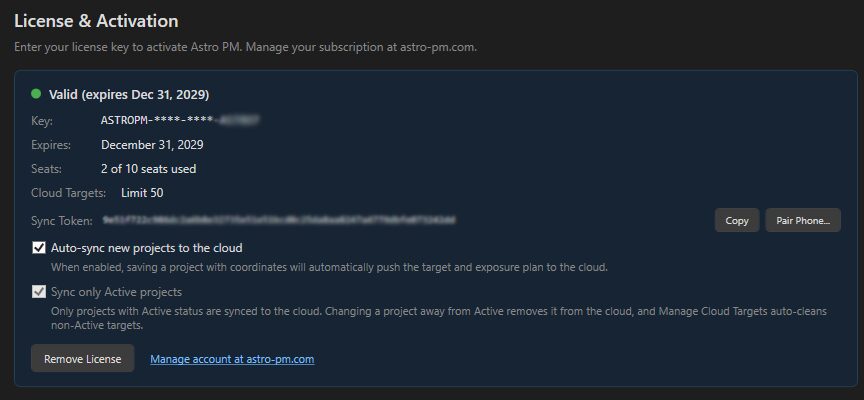
The top of the section shows your license state at a glance – a colored status dot with Valid (and days remaining on trial), Expired, or No license. During the 14-day free trial an amber banner reminds you, with a gold Buy License button linking to the store.
| Setting / control | What it does |
|---|---|
| License Key + Activate | paste the key from your purchase email and activate (requires internet at that moment) |
| Key / Expires / Seats / Cloud Targets | read-only summary once licensed: masked key, expiry date, seat count, and the cloud target limit (trial limits lift on activation) |
| Sync Token + Copy | your cloud sync token – copy it into the NINA plugin Options; see Cloud Sync & Your Sync Token |
| Pair Phone… | opens the QR pairing dialog for the phone app |
| Auto-sync new projects to the cloud (default ON) | saving a project with coordinates automatically pushes its target and exposure plan to the cloud |
| Sync only Active projects (always ON) | policy, not preference: only Active-status projects live in the cloud; moving a project off Active removes its cloud copy |
| Remove License | frees this computer’s seat (with confirmation) – use before retiring a machine |
Diagnostic Logging #
| Setting / control | What it does |
|---|---|
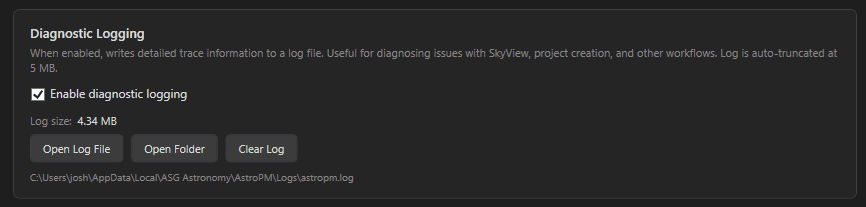
| Enable diagnostic logging (default OFF) | writes detailed trace information to a log file – useful when working through an issue with support; auto-truncated at 5 MB so it can never grow unbounded |
| Log size / Open Log File / Open Folder / Clear Log | see how big the log is, open it, browse the folder, or empty it |
The log path is shown in the section (under your user profile’s AppData). Leave logging off in day-to-day use; flip it on when reproducing a problem, then attach the log to your support message.
Imaging Root Folder #
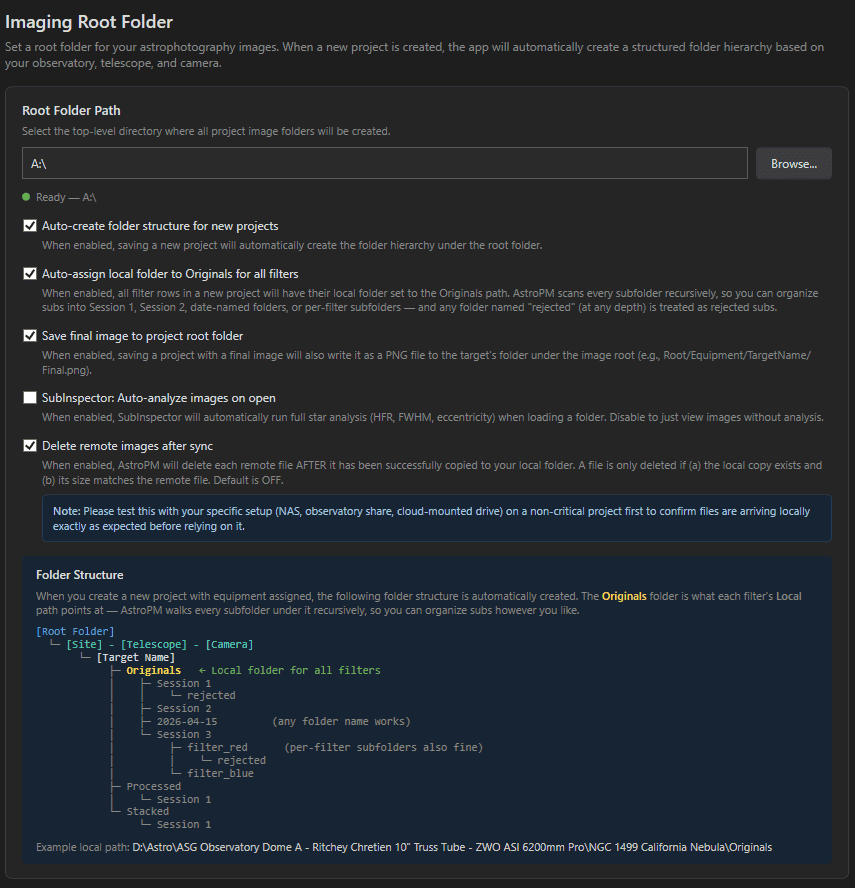
The root folder is where Astro PM organizes your image files on disk. Set it once and the file-side of the workflow becomes automatic:
| Setting | Default | What it does |
|---|---|---|
| Root Folder Path + Browse | not set | the top-level directory for all project folders; the status dot confirms it exists |
| Auto-create folder structure for new projects | ON | saving a new project creates its hierarchy automatically: [Root]/[Site]-[Telescope]-[Camera]/[Target]/ with Originals, Processed, and Stacked inside |
| Auto-assign local folder to Originals for all filters | ON | every filter line points at the Originals path; Astro PM scans subfolders recursively (Session 1, Session 2, per-filter folders), and any folder named rejected at any depth counts as rejected subs – matching Sub Inspector’s workflow exactly |
| Save final image to project root folder | ON | a project’s final processed image is also written as a PNG into the target’s folder |
| SubInspector: Auto-analyze images on open | ON | Sub Inspector runs full star analysis (HFR, FWHM, eccentricity) the moment a folder loads; turn off to browse without the analysis pass |
| Delete remote images after sync | OFF | after a remote file is successfully copied locally (and sizes match), the remote copy is deleted – keeps observatory disks lean |
Export & Import #
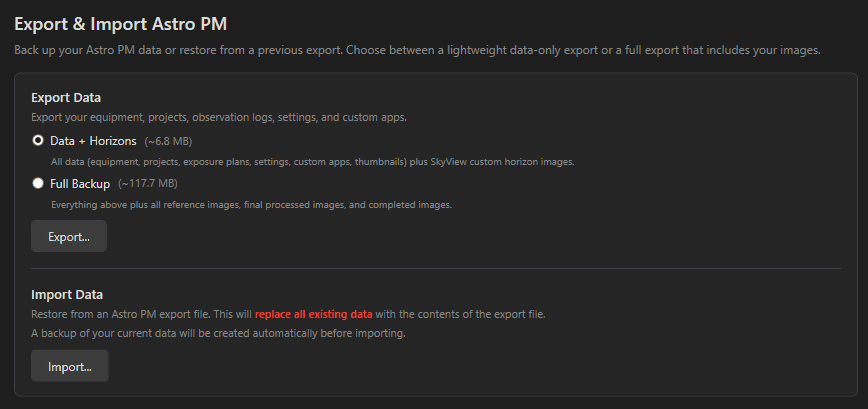
Whole-app backup and migration:
| Control | What it does |
|---|---|
| Data + Horizons (radio) | exports equipment, projects, exposure plans, settings, custom apps, thumbnails, and Sky View horizon images – the compact option, with a live size estimate |
| Full Backup (radio) | everything above plus reference, final, and completed images – the complete archive, size shown |
| Export… | choose a filename and location; runs in the background with live status |
| Import… | replaces all existing data with the export file’s contents – a backup of your current data is created automatically first, and a confirmation dialog stands between you and the button |
Star Catalog #
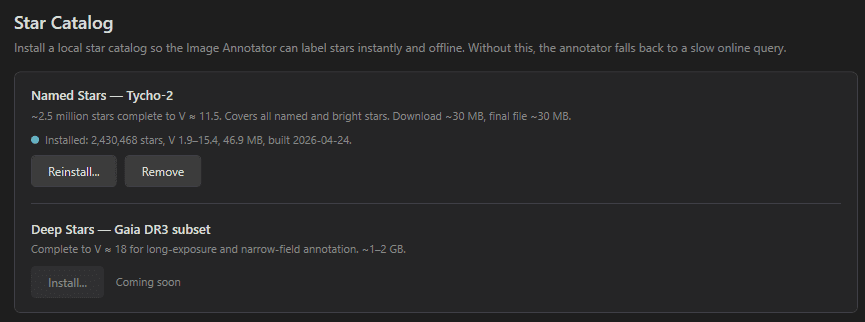
Optional downloadable star catalogs that deepen annotation and sky rendering:
- Named Stars – Tycho-2: ~2.5 million stars complete to V ≈ 11.5, about a 30 MB download. Install/Reinstall, Cancel mid-download, or Remove; the status line reports star count, magnitude range, size, and build date once installed.
- Deep Stars – Gaia DR3 subset: complete to V ≈ 18 for long-exposure and narrow-field annotation (~1-2 GB) – marked Coming soon.
Separately, Sky View can import a Gaia set from a local ASTAP D50 database – see Surveys & Star Rendering.
Catalog Overlays #
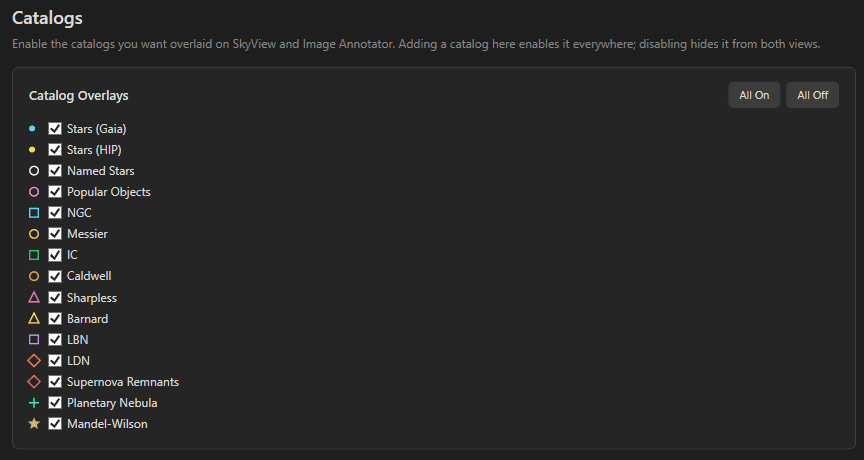
One checkbox per deep-sky catalog – NGC, IC, Messier, Sharpless, LBN, LDN, Barnard, planetary nebulae, supernova remnants, bright stars – each with its colored marker swatch. These toggles control catalog visibility in both Sky View and the Image Annotator, with All On / All Off shortcuts. (Per-catalog density sliders live in Sky View itself – see Overlays & Catalogs.)
App Connections: ASTAP #

Point Astro PM at your astap.exe (Browse defaults to C:\Program Files\astap). A green “Found – ready to use” dot confirms it. ASTAP unlocks local plate solving throughout the app: the Image Analysis panel, the Annotator, the Focal Length Calculator, and Sky View’s Gaia import. If you image, you want this one configured.
App Connections: Astrometry.net #

The online blind-solve fallback for when ASTAP is stumped. Create a free account at nova.astrometry.net, copy your API key from Profile → API Key, paste it here, and Save. Used by the Image Annotator as the remote solving option.
App Connections: CCD Inspector #

If you use CCDWare’s CCD Inspector, set its executable path here (Browse checks the usual CCDWare install folders). It appears as an external-tool button in the Image Analysis panel, opening the loaded image directly.
App Connections: Stellarium #
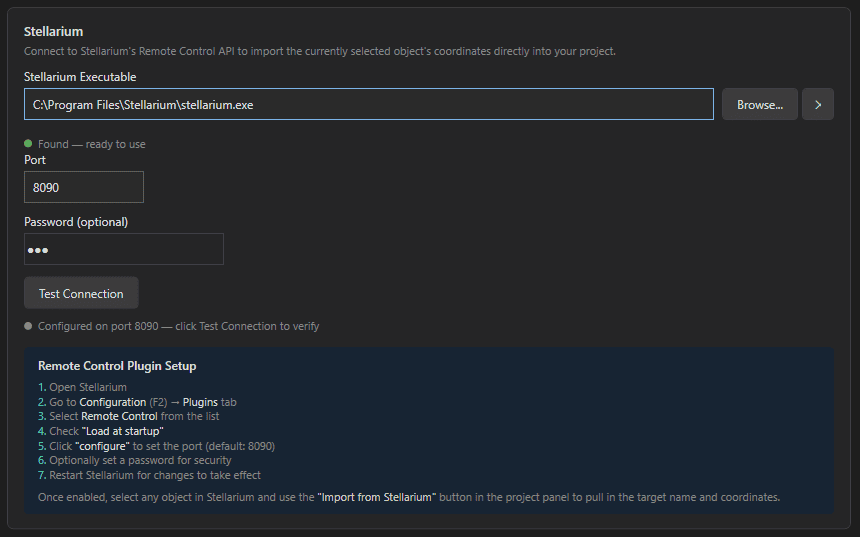
Connecting Stellarium’s Remote Control API enables two-way target hand-off: pull the selected Stellarium object into a project or Sky View, or push your framing out to Stellarium.
| Setting | Notes |
|---|---|
| Executable path | path to stellarium.exe (Browse defaults to C:\Program Files\Stellarium) |
| Port | the Remote Control port – Stellarium’s default is 8090 |
| Password (optional) | only if you set one in the plugin |
| Test Connection | pings the API and reports connected / not running / timeout |
One-time Stellarium setup: open Stellarium → F2 Configuration → Plugins → Remote Control → check “Load at startup” → configure the port (8090) → optionally set a password → restart Stellarium.
App Hub #
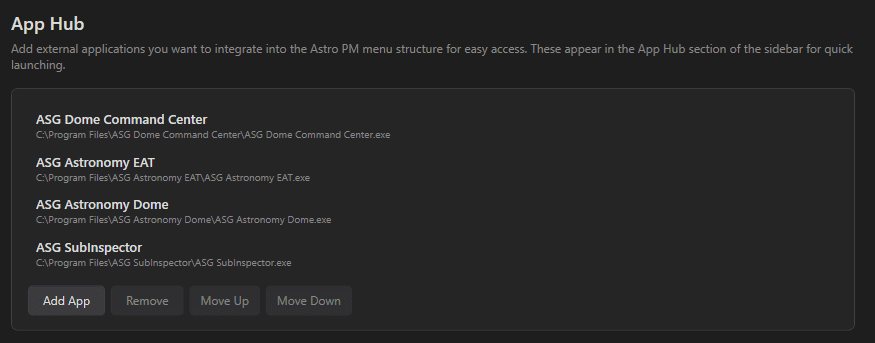
Add any external application to Astro PM’s sidebar for one-click launching – PixInsight, PHD2, your camera vendor tool, anything. Add App picks the .exe and asks for a display name; Remove and Move Up/Down manage the list, and the order here is the order in the sidebar. A small thing that turns Astro PM into the single launchpad for an imaging session.
Credits & Acknowledgments #
The final section credits the data sources and open tools Astro PM stands on – Hipparcos and Gaia star data, CDS/VizieR/SIMBAD, Aladin Lite, ASTAP, Astrometry.net, NINA, Stellarium, Open-Meteo weather, NOAA GOES imagery, OpenStreetMap, and the software libraries under the hood. Every entry links to its project.