
The project list is mission control for your whole imaging fleet: every project, on every rig, with live progress, sync state, and tonight’s altitude at a glance. This page covers the three views, filtering and priority, and the fleet-level syncing that keeps remote observatory files flowing home.
Status Tabs #
The sidebar splits projects by lifecycle: Active (scheduled and synced to NINA), Planning, Draft (ready to process), On Hold, Completed, and Shared (projects imported from a .astropm share). A status change is all it takes to move a project between tabs – and only Active projects live in the cloud.
The Three Views #
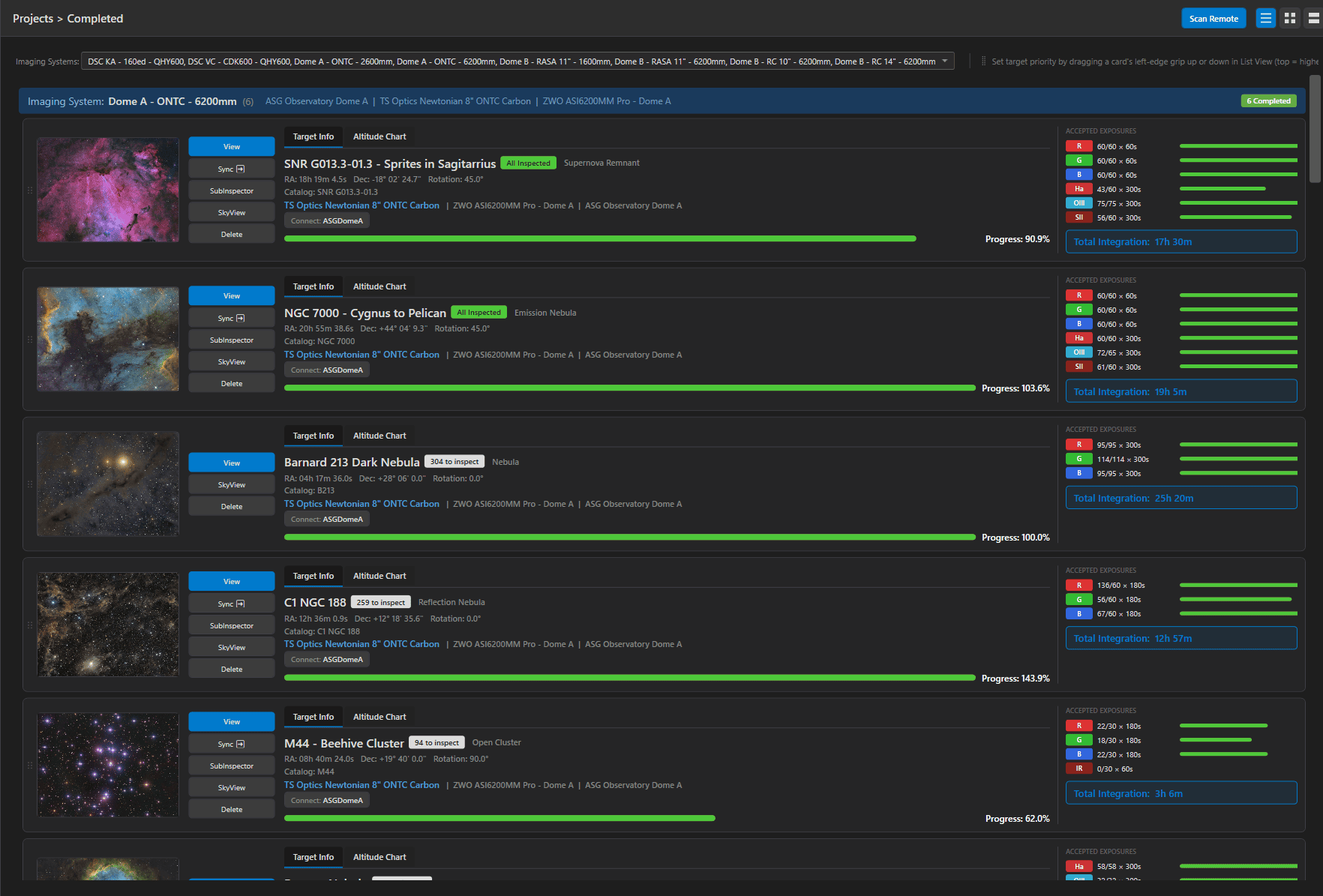
Three toggles in the header switch layout; all three show the same actions and progress, differing in density:
- List View (three-lines icon) – the workhorse: full-width rows with thumbnail, action buttons, target details, the altitude chart, and a per-filter Accepted Exposures table. On big monitors it spreads into five columns; on smaller windows it folds into tabs automatically.
- Card View (four-squares icon) – compact 470px cards with a large thumbnail on top, wrapped into a grid and grouped by imaging system. Best for browsing a large fleet visually.
- Detail View (stacked-rectangles icon) – one full-width card per project with target info, altitude chart, and image side by side; the most readable single-project summary.
Reading a Project Card #
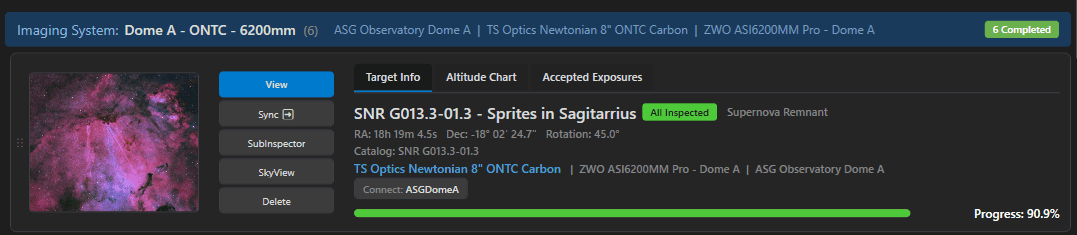
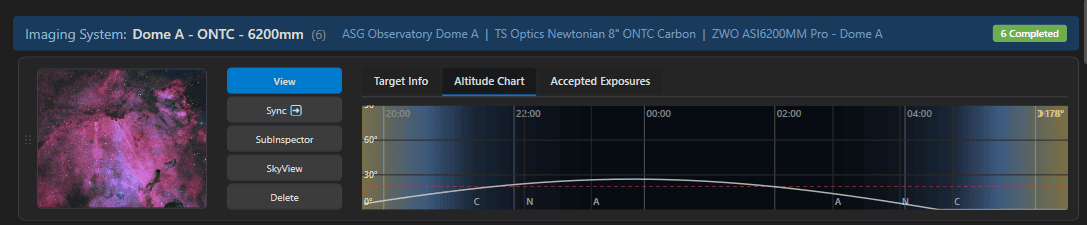
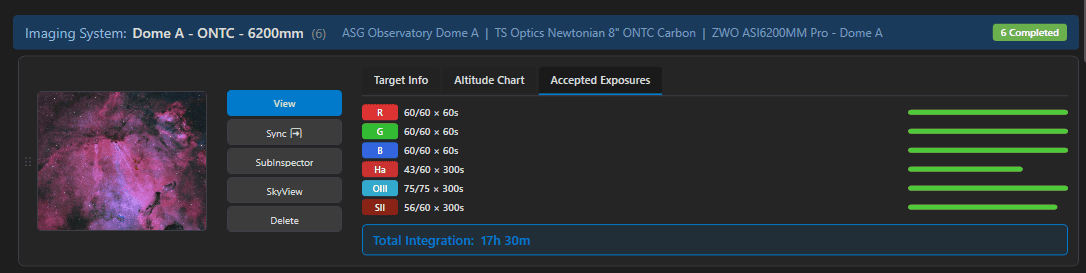
Every card carries the same vital signs:
- Badges – an inspection badge (“12 to inspect” – click it to jump straight into Sub Inspector with those files preselected, or “All Inspected”), and a mosaic badge for multi-panel targets.
- Equipment line – the rig (scope | camera | site) in cyan, plus a Connect button when the site has a default remote connection configured – one click to reach the observatory PC.
- The dual-layer progress bar – green shows accepted subs vs. planned; a red layer behind it shows files sitting on remote storage that have not been synced locally yet. Green catching up to red is literally your data coming home. The totals line spells it out: “23 of 50 Accepted | 12 Remote Pending”.
- Altitude chart – tonight’s arc for the target, so you can eyeball the fleet’s night without opening anything.
- Accepted Exposures table – per-filter micro-progress with the filter’s color chip; mosaics get per-panel tabs.
Filtering, Grouping & Priority #
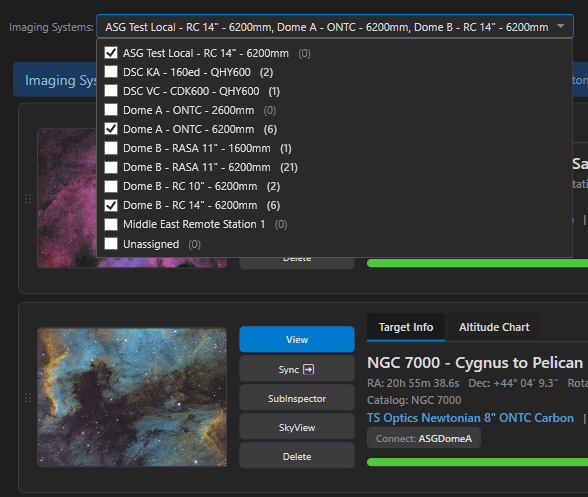
Projects are always grouped by imaging system, each group headed by its rig description and per-status count chips (“Active (7) Planning (2)”). The Imaging Systems filter popup checks systems on and off (with an Unassigned entry for orphan projects), and the selection is remembered.
Priority is set by dragging: grab the left-edge grip in List View and drag a card up or down within its imaging-system group – top is Priority 1. For Active projects the new order pushes to the cloud immediately, so the NINA plugin’s Manual Priority strategy follows your drag on the very next schedule build. See Scheduling Strategies.
Per-Project Actions #
| Button | What it does |
|---|---|
| View | opens the project editor in place |
| Sync ➔ | appears when the project has remote files not yet local – copies them down with a live progress strip on the card |
| SubInspector | opens Sub Inspector scoped to this project’s folders |
| SkyView | loads the target, rig FOV, and mosaic layout into Sky View |
| Delete | removes the project (and optionally its local folders, with confirmation) and cleans up its cloud target |
Fleet Syncing: Scan Remote & Sync All #

Two header buttons work across every project at once:
- Scan Remote – walks every configured remote folder across all projects and refreshes the counts without downloading anything. Cheap and fast: after a clear night, one click updates every card’s red bar to show what the observatories captured.
- Sync All Projects – appears whenever anything needs syncing; starts the actual downloads for every project with pending files, in parallel, each card showing its own “Syncing 23/50…” strip that resolves to “✓ Synced”.
The sync engine is careful on your behalf: files already present locally are skipped, files you previously rejected are not re-downloaded (their names are checked against the local /rejected folders), every copy is size-verified, and cloud-placeholder “online-only” files are reported rather than half-copied (“Synced 50 – 2 online-only”). The optional delete-remote-after-sync behavior lives in Settings.