Your Astro PM data lives in your Windows profile, separate from the program, so uninstalling and reinstalling is safe. This page lists where everything is kept, explains the uninstall prompt, and walks through moving Astro PM to a new computer with all your projects.
Where Your Data Lives #
| Location | What’s there |
|---|---|
C:\Program Files\Astro PM | The program itself. Replaced on every update; holds none of your data. |
%LOCALAPPDATA%\ASG Astronomy\AstroPM | logbook.db: the database with every project, site, telescope, camera, filter, imaging system, exposure plan, inspection result, setting and this PC’s license state. Also Logs\ (astropm.log, startup.log), Backups\ (automatic pre-import backups), Horizons\, image caches, your window size and position, and your usage-statistics choice. |
%LOCALAPPDATA%\AstroPM | The Tycho-2 star catalog (catalogs\) and the cache for the built-in web views (SkyView, weather maps). |
| Your Imaging Root Folder | Your images: Originals, Processed and Stacked folders per target. Installing, updating and uninstalling never touch it. |
To open the data folder, paste
%LOCALAPPDATA%\ASG Astronomy\AstroPM into the File Explorer address bar. Settings > AstroPM Settings > Open Folder opens the Logs folder inside it. Uninstalling #
Uninstall from Windows Settings > Apps > Installed apps > Astro PM > Uninstall, or from the Start menu’s Uninstall Astro PM entry. After the program files are removed you are asked:
Also delete your Astro PM data (projects, equipment, sites, image inspections and licence state)? … Choose No to keep it for a later reinstall.
- No (the default): your data stays. Reinstall later and everything is exactly as you left it.
- Yes: deletes the
ASG Astronomy\AstroPMdata folder for good. Only choose this when you really want a clean slate, and export a backup first.
Careful: Deleting your data does not free your license seat on the server. If you are retiring this computer, click Remove License in Settings > License & Activation before uninstalling, or remove the seat afterwards at astro-pm.com/account.
Choosing Yes also removes the star catalog and web-view cache in
%LOCALAPPDATA%\AstroPM, so nothing is left behind. The same prompt reminds you to click Remove License first if you are moving to another PC. Reinstalling #
- To repair or update: just run the installer again over the top. You don’t need to uninstall first; the installer closes Astro PM if it’s running.
- Uninstall and reinstall (a common troubleshooting step): answer No to the data prompt and your data is still there after reinstalling. The Welcome and Quick Setup dialogs don’t appear again because the PC is already set up.
- Start completely fresh: export a Full Backup first (below), uninstall and answer Yes, then reinstall. You go through Welcome and Quick Setup again as a new install.
Backing Up: Export #
Use Settings > Export & Import Astro PM to back up everything into one
.astropm.zip file: - Data + Horizons: equipment, projects, exposure plans, settings, custom apps, thumbnails and SkyView horizon images. Compact, so it’s a good routine backup.
- Full Backup: all of that plus reference images, final processed images and completed images.
The estimated size of each is shown next to the option. Click Export…, choose where to save it, and the status line confirms what was exported.
Exports never include your license key or sync token. They belong to the computer, not to your data, so a backup can’t move a license or a cloud pool onto another PC. Your sub-exposure files themselves are not in the backup either; they stay in your Imaging Root Folder.
Moving to a New Computer #
- Old PC: Settings > Export > Full Backup > Export…. Copy the file to the new PC, and copy or re-map your image drive too if your images live on the old PC.
- Old PC: if you won’t use it for Astro PM any more, click Remove License to free its seat.
- New PC: install Astro PM and activate it with your key in the Welcome dialog. This uses a seat and gives the new PC its own sync token.
- New PC: Settings > Import…, pick the backup and confirm. If the backup’s image folder doesn’t exist on this PC, answer the relocation prompt (next section).
- NINA and phone: if the new PC is where you’ll plan from, copy its sync token into the NINA plugin and re-pair your phone. See Cloud Sync & Your Sync Token.
Import replaces all data on the PC you import into. Before it does anything, Astro PM saves an automatic backup of what was there to
Backups\Pre-Import-Backup-date-time.astropm.zip in the data folder, so you can always go back. 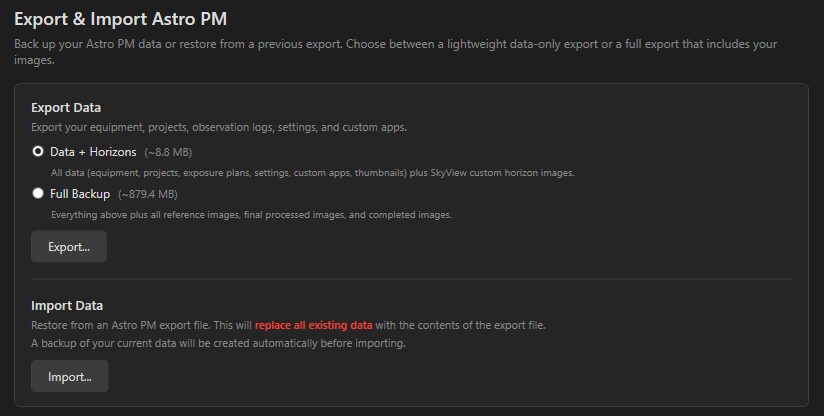
When Image Folders Move #
Every project remembers the full path of its image folders. If your images live at a different path on the new PC (a different drive letter, or a NAS mapped differently), Astro PM offers to fix the stored paths for you.
During import: if the backup’s Imaging Root Folder doesn’t exist on this computer, you see Image folders from another computer:
- Yes: choose the image root on this PC. Every project folder, calibration library and image path under the old root is repointed under the new one.
- No: keep the paths exactly as they are in the backup (for example, if you’ll map the same drive letter later).
- Cancel: stop without importing.
Afterwards: if you change Settings > Imaging Root Folder with Browse… and stored paths still point under the old root, you are asked Repoint existing folders? with a count of the references found. Yes repoints them; this is also the repair path if you imported earlier and answered No.
Both prompts only change the paths Astro PM has stored. No files or folders are moved or created, so move or copy the images themselves first. The NINA PC’s remote folder paths are never changed.