
Astro PM checks whether your calibration frames actually cover what each project shoots. Darks and bias live in a library you set once per camera; flats and dark flats live with each project. Every project then gets a Calibration Frames tab listing each dark, bias and flat it needs with a covered or missing status, and the result shows as badges on the project cards. Astro PM only reads file headers: it never moves, renames or calibrates your frames.
Where Each Frame Type Lives #
| Frame type | Put them in | Checked against |
|---|---|---|
| Darks | The camera’s Calibration Frame Library folder | Every exposure / binning / gain / offset in the project’s plan |
| Bias | The camera’s Calibration Frame Library folder | Every binning / gain / offset in the plan |
| Flats | The project’s Local folder(s) | Every filter in the plan, at the rotator angle the lights were shot at |
| Dark flats | The project’s Local folder(s) | Shown under each filter’s flats |
Individual frames or masters are both fine everywhere.
Setting Up the Camera Library #
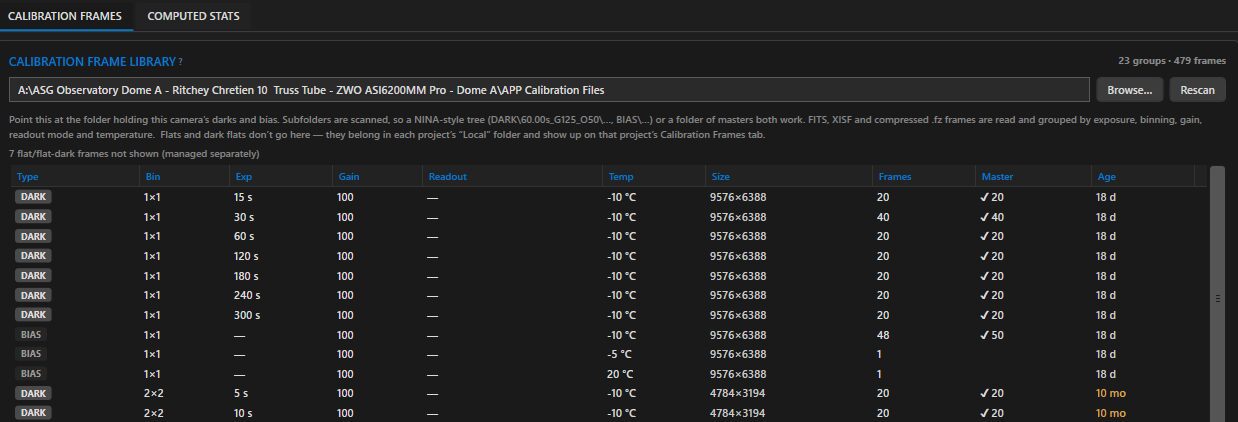
Open Equipment > Components > Cameras, select the camera, and find the CALIBRATION FRAME LIBRARY card. Click Browse… and choose the folder that holds this camera’s darks and bias. Subfolders are scanned, so a NINA-style tree (
DARK\60.00s_G125_O50\…, BIAS\…) or a plain folder of masters both work. FITS, XISF and compressed .fz frames are read.
Rescan re-reads every file in the folder. Otherwise scans are incremental: each file is remembered by path, size and modified time, so unchanged files are never reopened. That keeps rescans fast and avoids downloading cloud placeholder files. The status line reports progress (Checking for changes…, Scanning X / Y files…) and then a summary, for example 3 cloud-only files skipped (not downloaded) or 12 light frames ignored. Flats and dark flats found in the library are counted but not listed, since they belong with projects.
The summary at the top right reads N groups · M frames. Frames are grouped by type, binning, exposure, gain, readout mode and temperature:
| Column | Shows |
|---|---|
| Type | DARK or BIAS (bias groups show exposure as —). |
| Bin, Exp, Gain, Readout, Temp | The group’s capture settings from the headers. |
| Size | Frame dimensions. Highlighted if they don’t match this camera’s sensor at that binning (a sign the folder holds another camera’s frames). |
| Frames | Individual frames in the group. |
| Master | ✓ when a master exists, with the number of frames integrated into it when known. |
| Age | Age of the newest frame. Groups older than about six months are highlighted as a reminder to refresh them. |
Hover a row to see the file paths behind it. NINA writes dark flats with the image type DARK; Astro PM recognises them by
DARKFLAT in the folder or file name and keeps them out of your darks. Tip: If the folder is missing you’ll see No library folder set — click Browse… to point at this camera’s dark/bias folder. or Folder not found: … (for example when a network drive is offline).
The Project's Calibration Frames Tab #
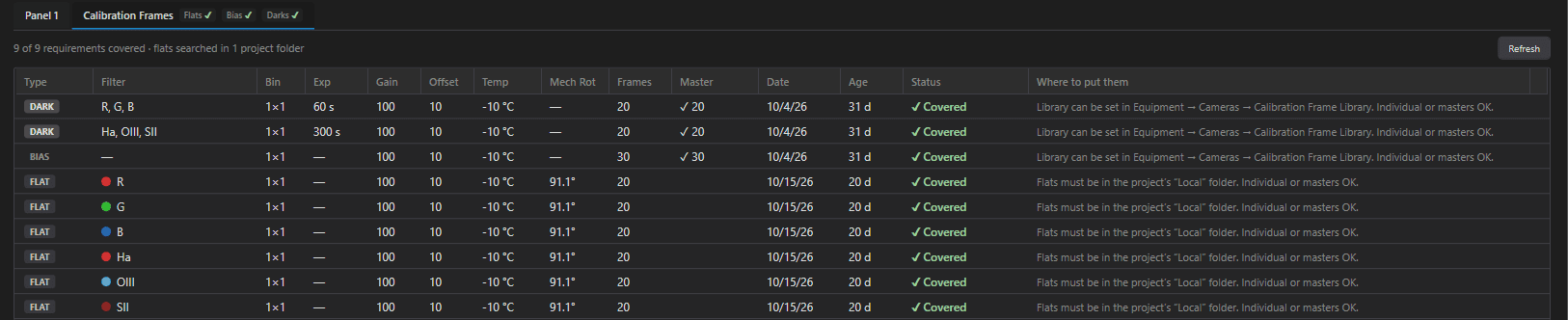
Open a project and click Calibration Frames at the end of the exposure-plan tab strip (after the panel tabs). Requirements are built from the plan’s enabled lines:
| Row | Requirement |
|---|---|
| DARK | One per unique exposure / binning / gain / offset. Matched against the camera library: exposure within 1% (at least 0.05 s), same binning, and the same gain and offset when the frames record them. Temperature is shown but not matched. |
| BIAS | One per binning / gain / offset combination, from the same library. |
| FLAT | One per filter per night the flats were shot, found by scanning the project’s local folders, newest first. A filter with no flats shows a single Missing row. |
| DARK FLAT | Shown under each filter’s flats when present. Informational. |
Columns: Type · Filter · Bin · Exp · Gain · Offset · Temp · Mech Rot · Frames · Master · Date · Age · Status · Where to put them. Statuses:
| Status | Meaning |
|---|---|
| ✓ Covered | Matching frames (or a master) exist. |
| ✗ Missing | Nothing matches. |
| ✗ Gain/offset | Frames exist at that exposure and binning, but at a different gain or offset. The tooltip lists what the library has, e.g. N at Gx/Oy. Match the line’s gain/offset to the frames, or shoot calibration at the line’s settings. |
| ✗ Rotation | Flats were shot with the rotator at a different mechanical angle from the lights (tolerance ±2°). Shoot flats with the rotator left where the lights had it. Frames with no rotator header always pass. |
| ? Unknown | Can’t be checked: no camera on the project, no scanned library for it, or no local folders set. |
The status line above the table reads X of Y requirements covered · flats searched in N project folders. Other messages tell you what’s missing, for example This camera has no scanned calibration library yet — set one in Equipment → Cameras → Calibration Frame Library. or No local subs folders are set on this project. Refresh re-checks darks and bias against the library and re-scans the project folders for flats. Saving the project also refreshes it.
The Where to put them column is a reminder: darks and bias go in the camera library; flats and dark flats go in the project’s Local folder.
Coverage Badges #
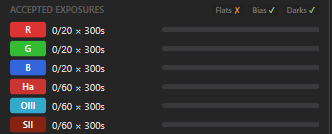
The tab header and every project card (beside ACCEPTED EXPOSURES) carry mini badges: Flats, Bias, Darks, and DarkFlats if you shoot them. Each is green when every requirement of that kind is covered and red when not. Bias and dark flats are either-or: the DarkFlats badge only appears when you actually have dark flats, and if dark flats cover the need and you have no bias, the Bias badge is dropped rather than nagging you.
Flats and Auto Flats Per Project #
The flats found here also form the project’s flats record, which is pushed to the cloud with the project. The NINA plugin uses it when Auto Flats Per Project is turned on (NINA Nightly Simulator, Step 1; modes Once Per Project or Time Based every N days). That way flats are taken only for the filter and rotation combinations a project still needs. It is a global setting, not a per-project one; see Automated Flat Handling.