
Astro PM relies on a set of online services: its own cloud for NINA and phone sync, plus third-party providers for weather, maps, sky imagery, catalogs and plate solving. When something stays blank or a lookup fails, Test Connectivity checks every one of them from this computer in a few seconds, so you can tell at a glance whether the problem is your network, a provider that’s down, or something else.
Running the Test #
Open Settings and scroll the right-hand column to Test Connectivity. Click the Test Connectivity button. All services are tested at the same time; each row’s dot updates as its answer arrives, and the whole run takes at most about 10 seconds.
When it finishes, the summary line reads, for example, "23 online, 0 slow or erroring, 0 offline (tested 9:41 PM)". Before the first run it says "Not tested yet." Hover over a service name to see the address it tested.
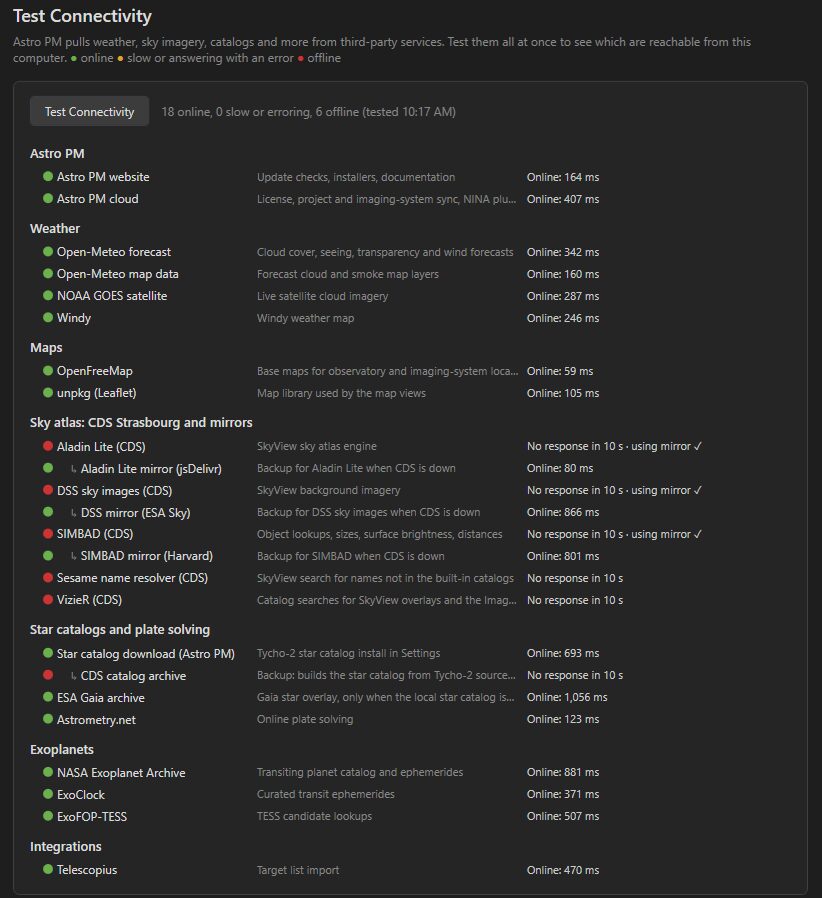
The result is also written to the diagnostic log (when logging is on), which helps support see what your PC could reach.
Reading the Results #
| Dot | Status text | Meaning |
|---|---|---|
| Green | Online: N ms | Reachable and answering within 3 seconds. |
| Amber | Slow: N ms | Reachable but took longer than 3 seconds. Features that use it will feel sluggish. |
| Amber | Responded with an error (HTTP n) | The server answered but with a server error, or (for keyed services) refused the request. Usually a problem at the provider’s end; try again later. |
| Red | Name not found (DNS) | This PC couldn’t look up the address. Check your internet connection or DNS settings. |
| Red | Connection refused / Connection timed out / Network unreachable | Something between you and the service is blocking it: no internet, a firewall, a VPN or a proxy. |
| Red | Secure connection failed (TLS) | The secure connection couldn’t be set up. Often a wrong Windows clock, or a network that inspects HTTPS traffic. |
| Red | No response in 10 s | No answer at all within the time limit. |
Some services have a backup mirror, listed indented underneath with a ↳ arrow. If the main service is down, its row adds "· using mirror ✓" when the mirror is covering for it, or "· mirror also down" when it isn’t.
What Gets Tested #
| Group | Service | Used for |
|---|---|---|
| Astro PM | Astro PM website | Update checks, installers, documentation |
| Astro PM | Astro PM cloud | License, project and imaging-system sync, NINA plugin, phone app |
| Weather | Open-Meteo forecast | Cloud cover, seeing, transparency and wind forecasts |
| Weather | Open-Meteo map data | Forecast cloud and smoke map layers |
| Weather | NOAA GOES satellite | Live satellite cloud imagery |
| Maps | OpenFreeMap | Base maps for observatory and imaging-system locations |
| Maps | unpkg (Leaflet) | Map library used by the map views |
| Sky atlas: CDS Strasbourg and mirrors | Aladin Lite (CDS) → mirror: jsDelivr | SkyView sky atlas engine |
| Sky atlas: CDS Strasbourg and mirrors | DSS sky images (CDS) → mirror: ESA Sky | SkyView background imagery |
| Sky atlas: CDS Strasbourg and mirrors | SIMBAD (CDS) → mirror: Harvard | Object lookups, sizes, surface brightness, distances |
| Sky atlas: CDS Strasbourg and mirrors | Sesame name resolver (CDS) | SkyView search for names not in the built-in catalogs |
| Sky atlas: CDS Strasbourg and mirrors | VizieR (CDS) | Catalog searches for SkyView overlays and the Image Annotator |
| Star catalogs and plate solving | Star catalog download (Astro PM) → backup: CDS catalog archive | Tycho-2 star catalog install in Settings |
| Star catalogs and plate solving | ESA Gaia archive | Gaia star overlay, only when the local star catalog isn’t installed |
| Star catalogs and plate solving | Astrometry.net | Online plate solving |
| Exoplanets | NASA Exoplanet Archive | Transiting planet catalog and ephemerides |
| Exoplanets | ExoClock | Curated transit ephemerides |
| Exoplanets | ExoFOP-TESS | TESS candidate lookups |
| Integrations | Telescopius | Target list import |
Astro PM switches to the mirrors automatically when a CDS Strasbourg service is down, so SkyView, its imagery and SIMBAD lookups keep working during a CDS outage. You don’t need to change anything.
Fixing Common Problems #
- Everything is red: this PC has no working internet connection. Check the network, then run the test again.
- Only the Astro PM rows are red: activation, cloud sync, NINA and the phone can’t work from this PC. Ask whoever runs the network to allow
astro-pm.com. - A whole group is red on a work, school or observatory network: a firewall or proxy is blocking those providers. Ask for the listed services to be allowed (hover each row for its address), or try another network to confirm.
- Lots of TLS failures: check that the Windows date, time and time zone are correct, then retry. Security software that inspects HTTPS can also cause this.
- Results come and go with a VPN: some VPN exit points are blocked by providers. Test with the VPN on and off.
- One provider is red or amber everywhere: the service itself is down. It usually comes back on its own; where a mirror exists, Astro PM is already using it.
While you work, the footer’s activity light gives the same signal live: pulsing blue while a request is running, green when it succeeds and amber when it fails, with a label saying what it was. See App Overview & Navigation.
Tip: If NINA isn’t receiving targets, run this test on the NINA PC as well as your planning PC: the Astro PM cloud row must be green on both. Also check that the plugin uses the right sync token; see Cloud Sync & Your Sync Token and NINA Troubleshooting.