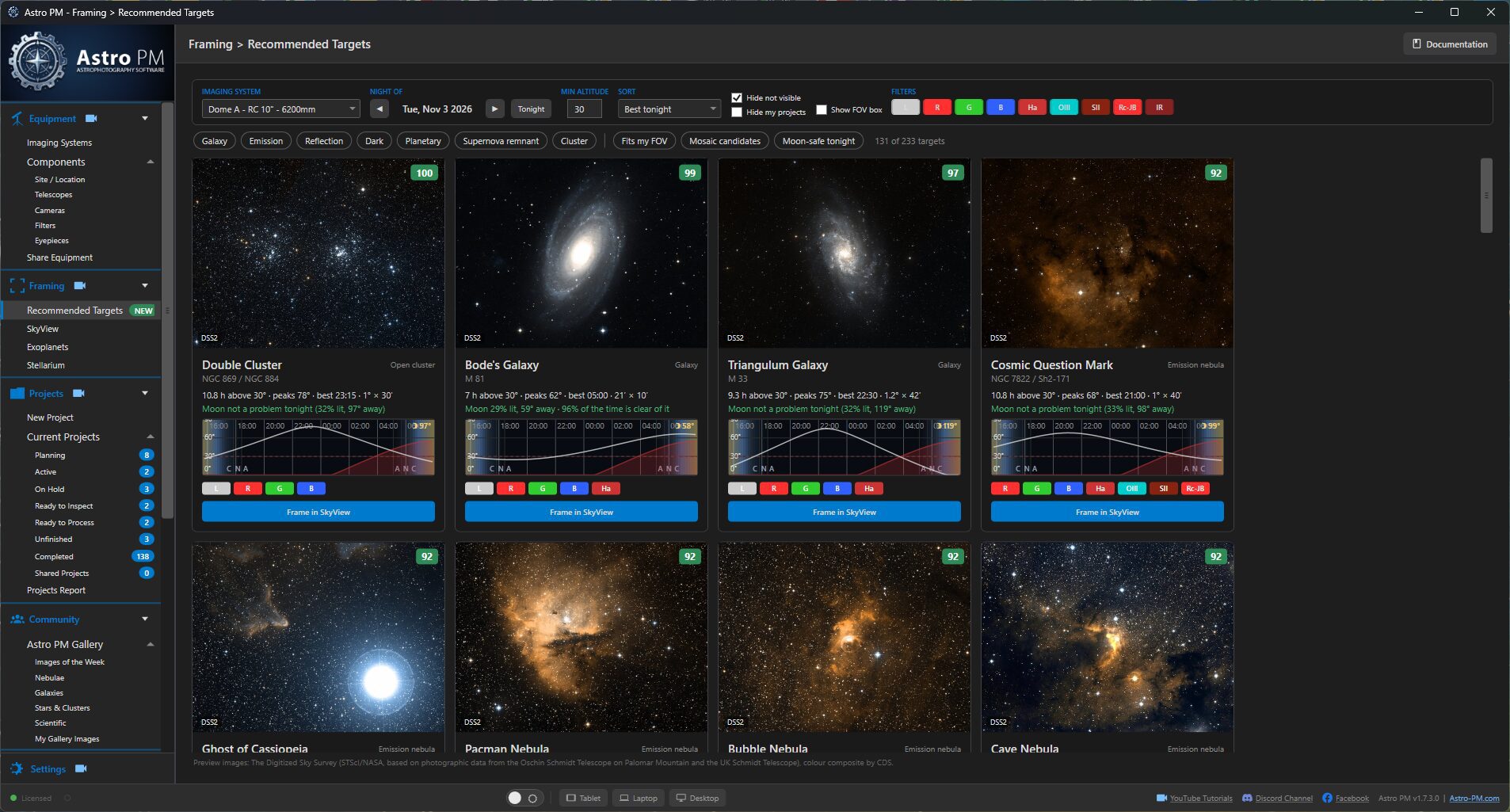
Recommended Targets (Framing > Recommended Targets) answers the question every imager asks on a clear afternoon: what should I shoot tonight? It ranks a curated list of 233 popular deep-sky targets (galaxies, emission, reflection and dark nebulae, planetaries, supernova remnants and clusters) for one night, from one of your imaging systems. The ranking uses that rig’s site (latitude, time zone and custom horizon), its field of view and its filters, plus the Moon. Every target gets a card with a real survey preview, a score, a night altitude chart and the filters to use. One click frames the target in SkyView, ready to become a project.
Before You Start #
Recommendations are calculated from an imaging system, so you need at least one enabled system that has a site assigned (see Imaging Systems). Without one, the panel shows "Pick an imaging system that has a site. Recommendations depend on where you image from and your field of view. Set one up in Equipment > Imaging Systems."
For the best results the system should also have a telescope and camera (so the field of view is known) and filters on the telescope (so the panel can match targets to what you can actually shoot). If the site has a custom horizon (.hrz), time a target spends behind your trees or roofline doesn’t count.
The Toolbar #
Every setting in the toolbar re-ranks the list instantly. All of them are remembered between sessions.
| Control | Default | What it does |
|---|---|---|
| IMAGING SYSTEM | Last used (else the first) | The rig to recommend for. Its site decides what rises high, its scope + camera decide the field of view, and its telescope’s filters fill the FILTERS row. Only enabled systems with a site are listed. |
| NIGHT OF ◀ date ▶ Tonight | The current night | The evening the night starts on, shown as e.g. Tue, Nov 4 2026. Before noon (site time) "the current night" is last night, so at 2 AM you still see the night in progress. Arrows step a night at a time; Tonight jumps back. Picking a different imaging system also resets to the current night. |
| MIN ALTITUDE | 30 | Degrees. Time with the target below this, or below your custom horizon at that azimuth (whichever is higher), doesn’t count. Applies when you press Enter or leave the box. Accepted range 0-85. |
| SORT | Best tonight | Best tonight (score, then hours), Most hours (usable hours), Best time (earliest peak first, a good running order for the night), Size (largest first), Name. |
| Hide not visible | On | Hides targets with less than 15 minutes above the minimum altitude in darkness. Turn it off to see everything, with unreachable targets dimmed. |
| Hide my projects | Off | Hides targets you already have a project for. Matching is by position (within 0.5°), so it works however you named the project. |
| Show FOV box | Off | Draws this rig’s field of view as a dashed box, centered on each preview image. |

Filter Chips (Your Rig's Filters) #
When the selected rig’s telescope has filters set up in Equipment > Filters, a FILTERS section appears with one chip per filter, colored like the filter itself. A filled chip is on; an outlined chip is off. Hover a chip to see how it’s classed:
- Narrowband (Ha, OIII, SII, dual/tri/quad-band): good for emission nebulae, supernova remnants and planetaries.
- Broadband (L, R, G, B, UV/IR cut): galaxies, reflection and dark nebulae and clusters need one of these.
- Other (IR-pass, photometric): not used for deep-sky recommendations.
Targets your enabled filters can’t image are hidden: a galaxy disappears if only narrowband chips are on, while an emission nebula stays because it works with either kind. Turning chips off is how you say "I only have the duo-band on tonight." The off-set is remembered per imaging system. The pills on each card also follow the chips you have on.
Type and Property Chips #
The second row narrows the list further. Type chips combine as OR (Galaxy + Emission shows both), and with none selected every type shows.
| Chip | Shows |
|---|---|
| Galaxy, Emission, Reflection, Dark, Planetary, Supernova remnant | That object type. |
| Cluster | Globular and open clusters. |
| Fits my FOV | Objects that fill 15-100% of the field’s short side: one frame, nicely filled. |
| Mosaic candidates | Objects bigger than the field (more than 1.1×). These cards carry a MOSAIC tag. See Mosaic Planning. |
| Moon-safe tonight | Targets where at least 80% of the usable time is clear of the Moon for that kind of target (see scoring below). |
The count at the right reads e.g. "41 of 233 targets". If nothing is left you’ll see "No targets match these filters on this night. Try clearing a filter, lowering the minimum altitude, or another night."
How the Score Works #
Each target is checked every 15 minutes through the night’s astronomical darkness (Sun below −18°). A sample counts as usable only when the target is above both your minimum altitude and your custom horizon at that azimuth. Where the Sun never gets that low (high latitudes in summer), nautical darkness (−12°) is used instead and the card says "no astro dark, nautical used".
The score (0-100) in the badge on each image combines four things (hover the badge to see the formula):
| Part | Weight | How it’s measured |
|---|---|---|
| Usable hours | 35% | Hours above your limits in darkness, full marks at 7 hours. |
| Popularity | 30% | A curated 1-5 rating: showpieces outrank obscure neighbors on an equally good night. |
| Moon | 20% | Share of the usable time that’s clear of the Moon. |
| Fit to your field | 15% | Full marks when the object fills 25-80% of the frame (major axis along the long side). Falls to zero for tiny targets (5% of the frame) and to a 30% floor for oversized ones, since a cropped framing of a big showpiece is still a fine night. |
Moon-safe means the Moon is below the horizon, or far enough away for the type of target. Emission nebulae, supernova remnants and planetaries (narrowband targets) tolerate much more moonlight: they need 15° + 45° × illumination of separation (60° at full Moon). Galaxies, reflection and dark nebulae and clusters need 30° + 90° × illumination (120° at full Moon).
Badge colors: green 75 and up, gold 50-74, rust below 50. A target that isn’t visible shows a gray — and its card is dimmed.
Reading a Card #
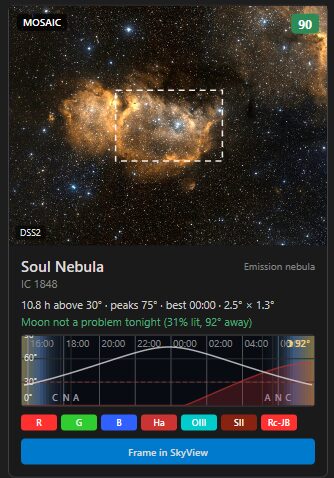
- Preview image: a north-up DSS2 color view of the target. Previews are fetched from the sky survey the first time a card comes on screen ("Fetching survey image…") and then cached on your PC, so later visits and offline use are instant. Dark nebulae are brightened 4× and reflection nebulae 2× so they’re visible at all. Offline with nothing cached, the card says "Preview unavailable (offline?)". The footer activity dot shows Fetching target previews… while downloads run.
- Overlays: the score badge, a MOSAIC tag when the object is bigger than your field, a DSS2 credit, and the dashed FOV box when Show FOV box is on (hidden when your field is wider than the preview).
- Name, type and catalog: e.g. Heart Nebula, Emission nebula, IC 1805.
- Visibility line: "6.5 h above 30° · peaks 78° · best 23:40 · 1.5° × 1°", or, when not visible, "Peaks at 24° in darkness, below your 30° limit" / "Doesn’t rise in darkness from this site".
- Moon line, colored green / amber / red: "Moon not a problem tonight (32% lit, 95° away)" or "Moon 87% lit, 40° away · 35% of the time is clear of it".
- Night altitude chart: the same chart the project cards use, with the Moon’s curve and your minimum-altitude line. See Target Visibility Charts.
- Filter pills: your enabled rig filters that suit the target (narrowband plus RGB for emission targets; LRGB, plus Ha for galaxies). If the rig has no filters set up, generic suggestions appear instead, for mono or color cameras (e.g. Ha / OIII / SII / R / G / B for a mono camera on an emission nebula, Dual-band / UV/IR for a color camera).
The first 48 cards are shown, and more load automatically as you scroll toward the bottom of the list. Changing a filter, the sort order or the imaging system returns the list to the top. Image credit: The Digitized Sky Survey (STScI/NASA, Palomar and UK Schmidt telescopes), colour composite by CDS.
Frame in SkyView, Then Create the Project #
Click Frame in SkyView on a card (or click the preview image). SkyView opens on the target with this imaging system’s site, telescope and camera, the System selector set to the rig, and the target’s name in the search box. Adjust rotation, try a mosaic for a MOSAIC target, and when you like the composition press Start New Project. The new project gets the coordinates, rotation, mosaic layout, imaging system and a captured framing image (see Creating Projects & Targets).