
Skip to content
  • Home
  • Astro PM Features
    • Equipment Management
    • Project Management
    • N.I.N.A. Automation
    • Sky View & Framing
    • Exoplanet Bonus
    • Weather Forecast
    • SubInspector
    • Image Analysis
    • Calculators & Tools
    • Android & iOS Phone Apps
  • User Gallery
  • Buy License
  • Resources
    • Documentation
    • View YouTube Channel
    • Join Discord Channel
    • Join Facebook Page
    • Contact Us
    • Account
Buy License
Download
Sign up for our Newsletter:

Installation & Setup

7
  • Uninstalling, Reinstalling & Your Data
  • System Requirements & Download
  • Installing Astro PM on Windows
  • Activating Your License
  • First Launch Setup
  • Updating Astro PM
  • Cloud Sync & Your Sync Token

Astro PM App Guide

49
  • Test Connectivity
  • App Overview & Navigation
  • Astro PM Settings
  • Equipment Setup
    • Custom Horizons
    • Cameras
    • Imaging Systems
    • Observing Sites
    • Telescopes
    • Filters & Exposure Plans
    • Eyepieces
    • Sharing Equipment
  • Framing
    • Exoplanet Transit Planner
    • SkyView Troubleshooting & Offline Mode
    • Recommended Targets
    • SkyView & Framing
    • SkyView Surveys & Star Rendering
    • SkyView Overlays & Catalogs
    • SkyView Time Controls & Timeline
  • Projects
    • Projects Report
    • Exoplanet Projects: Transit, Night Lock & Results
    • Calibration Frames: Library & Coverage
    • Importing Targets from Telescopius
    • Exposure Plans & Progress Tracking
    • Project Management: The Project List
    • Creating Projects & Targets
    • Target Visibility & Charts
    • Moon Avoidance
    • Mosaic Planning
  • Community
    • Astro PM Gallery
    • Image of the Week
    • My Gallery Images
  • Weather
    • Forecast Map & Satellite
    • Weather Forecasting
  • NINA Tools
    • Scheduling Strategies
    • How Astro PM Builds a Night
    • Simulator Settings Reference
    • The Nightly Simulator
    • Managing Cloud Targets
  • Analysis Tools & Calculators
    • Exposure Calculator: Target SNR Forecast
    • Exposure Calculator: Exoplanet Mode
    • Calibrating Your System Zeropoint
    • Analysis Tools & Calculators Overview
    • SubInspector
    • Single Image Analysis
    • Image Annotator
    • Sampling Calculator
    • Exposure Calculator
    • Focal Length Calculator

Astro PM NINA Guide

13
  • How NINA Counts Your Subs
  • Flats Options: Full Set, Copy and Auto Flats
  • Using Astro PM Targets in the Framing Assistant
  • Installing the NINA Plugin
  • Connecting NINA to Astro PM
  • Astro PM Instructions Explained
  • Building Your Sequence
  • Offline & Vacation Mode
  • Playback Modes
  • The NINA Simulator Panel
  • Automated Flat Handling
  • Trigger Sets: Custom Instructions
  • NINA Troubleshooting

Astro PM Phone Guide

9
  • The Image Gallery on Your Phone
  • Phone App Tour
  • Installing the Phone App
  • Pairing Your Phone
  • Browsing Systems & Targets
  • Checking Progress from Your Phone
  • The Weather Panel
  • Remote Pause & Resume
  • Phone App Troubleshooting
View Categories
  • Home
  • Docs
  • Astro PM NINA Guide
  • Flats Options: Full Set, Copy and Auto Flats

Flats Options: Full Set, Copy and Auto Flats

0:00 / 3:55
  • View as Markdown Open this page as plain Markdown (opens in a new tab)
  • Open in ChatGPT Ask questions about this page (opens in a new tab)
  • Open in Claude Ask questions about this page (opens in a new tab)
  • Open in Google AI Studio Ask questions about this page (Google account required) (opens in a new tab)
With Enable Flats Sequence ticked, the FLAT HANDLING group in the desktop simulator’s Step 1 offers three options that change which flats NINA takes and where they go. This page explains each one. For the basics of flat handling, start with Automated Flat Handling.

The Options at a Glance #
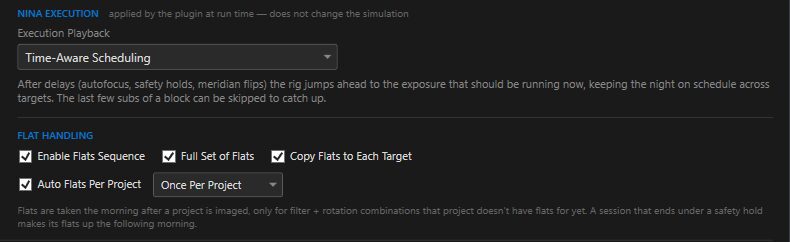
NINA EXECUTION: Execution Playback and FLAT HANDLING
FLAT HANDLING with Auto Flats Per Project enabled (here in Once Per Project mode; Time Based adds the every-N-days box)
OptionDefaultIn short
Full Set of FlatsOffFlats for every filter in the wheel, not just those used tonight.
Copy Flats to Each TargetOnShared flats are copied into every target’s folder.
Auto Flats Per ProjectOffOnly take flats a project still needs.
  Once Per Project / Time BasedOnce Per ProjectTake missing flats once, or refresh them every N days.
  every N days71, 2, 3, 5, 7, 10, 14, 21 or 30.
These are execution settings: they never change the simulated plan. They reach the rig with the rest of Step 1.

Full Set of Flats #

Takes flats for every filter in the filter wheel at each target and rotation captured tonight, not just the filters you shot. It’s a quick way to build a complete flat library in one pass. Filter names are matched to the wheel, so R/G/B and Red/Green/Blue don’t produce duplicates. If the NINA profile has no filters defined, the plugin falls back to tonight’s captures.

Shared Flats and Copy Flats to Each Target #

When two targets were shot with the same rotation, filter and camera settings, their flats would be identical, so they are taken once. The log says, for example, 6 combos collapse to 4 physical captures.
  • On (default): the files are copied into each of those targets’ folders, so every target folder is self-contained for stacking and shows its flats in Astro PM.
  • Off: one shared set, saved under the first target, with no duplicate files.
Copying needs $$TARGETNAME$$ in NINA’s file pattern, so the plugin can tell which folder belongs to which target.

Auto Flats Per Project #

Instead of taking flats after every session, take them per project, only when that project needs them. The description under the options changes with your choice:
ModeBehaviour
Once Per Project“Flats are taken the morning after a project is imaged, only for filter + rotation combinations that project doesn’t have flats for yet.” After that, the project is left alone.
Time Based“Each project’s flats are re-taken every N days from its last flat session.” Days are counted as imaging nights (noon to noon), so every 1 day means every night.
Off“Flats run after every session for each filter + rotation used that night.”

How Astro PM Knows Which Flats Exist #

To decide, the plugin combines two records for each project:
  • The desktop’s record – flats the desktop app found in the project’s folders. It is sent to the cloud when the project syncs and each time you run the simulator.
  • The plugin’s own record – flats the plugin has taken itself, which the desktop can’t see until the files reach it.
A combination counts as covered when an existing flat set matches its filter, gain, offset and binning, at a rotator angle within 2°. The log shows each decision on a AstroPM | Flats/auto line, and when nothing is needed NINA says Flats skipped — all projects already have current flats.
Tip: If Auto Flats keeps re-taking flats you already have, open the project on the desktop so its folders are rescanned, then run the simulator. That sends the desktop’s record to the cloud.

Safety Holds and Missed Mornings #

  • If a night ends under a safety hold and the flats can’t run, Auto Flats carries them over and makes them up after the next session, for up to 3 nights.
  • If the sequence is restarted 2 hours or more after the session ended, the flats window is missed. Without Auto Flats the pending flats are dropped; with Auto Flats they are carried to the next session.
  • Turning Enable Flats Sequence or Auto Flats Per Project off drops anything carried over.

Offline #

Auto Flats keeps working in Offline / Vacation Mode, using the last desktop record it fetched plus its own local record.
Updated on November 4, 2026
How NINA Counts Your SubsUsing Astro PM Targets in the Framing Assistant
Page Content
  • The Options at a Glance
  • Full Set of Flats
  • Shared Flats and Copy Flats to Each Target
  • Auto Flats Per Project
  • How Astro PM Knows Which Flats Exist
  • Safety Holds and Missed Mornings
  • Offline

Features

  • Equipment Library
  • Project Management
  • Sky View & Framing
  • Image Analysis
  • Calculators
  • SubInspector
  • NINA Plugin

Resources

  • Contact Us
  • Terms of Service
  • View Account
  • Discord Channel
  • Join Facebook

Get Started

Professional astrophotography project management software. Plan imaging sessions, manage equipment, analyze sub-frames, and sync targets to NINA — all in one workspace.

Download

© 2026 AstroPM

Terms of Use & Privacy Policy